Configuration
Set what the server needs in .env before the first start, change it later, and find the system settings an administrator changes in the app.
Two places
| What | Where | Who changes it | Takes effect |
|---|---|---|---|
| How the stack runs: ports, names, directories, limits, secrets | .env and the files of ./secrets, on the host |
Whoever has a shell on the host | When the containers are made again: docker compose up -d |
| How Nik behaves: sign-in policy, backups, health thresholds, bulk limits, what leaves the server… | Platform settings, in the app | An account with the Admin role | At once |
Every variable is in Environment variables, with its default.
The .env file
deploy/init-env.sh writes it from .env.example, with a fresh value for every secret. On a new install the secrets go into files of ./secrets and their lines in .env stay empty (Keys and secrets).
To change a variable:
- Edit
.env(oneNAME=valuea line). - Run
docker compose up -d(orpodman compose up -d). Compose makes again the containers whose settings changed.
A variable the Compose file does not pass
Some variables (marked override in the reference) are not passed to the containers. Add them to the service's environment in a docker-compose.override.yml beside the Compose file:
Before the first start
Set these in .env; the rest can wait.
| Variable | Set it to | Why now |
|---|---|---|
TLS_HOSTNAME |
The name users type (nik.example.org) |
It goes into the self-signed certificate made at the first start |
WEB_TLS_PORT, WEB_PORT |
Free host ports (8443, 8080) | They are published on the host |
NIK_SECRETS_DIR |
Leave ./secrets, or a path on another disk |
A store key on the disk it protects does not protect a stolen host (why) |
NIK_BACKUP_DIR |
A directory on another disk (/srv/nik-backups) |
A backup on the disk it protects is lost with it |
NIK_WAL_ARCHIVE_DIR |
A directory on another disk (/srv/nik-archive) |
The same, for the archive of the database log |
AUTOMATION_HTTPS_PROXY, AUTOMATION_NO_PROXY |
Your explicit proxy, if any | Playbooks and connectors reach the outside through it |
A host directory needs the right owner and, under SELinux, a label: create it as the user that runs the stack, then chcon -Rt container_file_t <dir>.
Size limits
| Variable | Default | Limits |
|---|---|---|
SAMPLE_MAX_MB |
100 | A sample or an e-mail |
ARTIFACT_MAX_MB |
500 | An evidence file the server parses |
PCAP_MAX_MB |
500 | A packet capture |
MAILBOX_MAX_MB |
2048 | A mailbox (mbox, Maildir archive) |
PST_MAX_MB |
4096 | An Outlook PST |
The shipped nginx lets a mailbox upload of 4200 MB through. To raise MAILBOX_MAX_MB or PST_MAX_MB above that, also raise client_max_body_size of the mailbox location in frontend/nginx/nginx.conf.
Settings in the app
Open Platform settings at the foot of the rail. These are the sections an administrator owns:
| Section | What you set there | More |
|---|---|---|
| System › Health | Thresholds of the warnings, the Prometheus scrape token | Health and audit |
| System › Storage | Disk use, encryption of the store | Keys and secrets |
| System › Keys | Where each key comes from; asking for a change | Keys and secrets |
| System › Workers | The state of each worker | Health and audit |
| System › Bulk actions | Limits of the bulk actions; the jobs | below |
| System › Backup | Passphrase, schedule, retention, copy off the server, recovery to a moment | Backups, Recovery |
| System › Audit log | The chain, forwarding to syslog, removing old entries | Health and audit |
| Access › Sign-in and sessions | Second factor for administrators, session times, failed sign-ins, administrators' networks | below |
| Access › Accounts and roles, API keys | People, roles, keys | Accounts, roles and sign-in |
| Automation › Network and data | Hosts every playbook may reach, the SMTP server | Connectors |
| Automation › Stop all | The general switch of automation | Health and audit |
| Automation › Content packs | The catalogue, installing and updating packs | Content packs |
| Indicators › Threat intelligence, Indicators found | Automatic look-ups, what they may send; finding indicators as incidents come in | Threat intelligence |
| Analysis › Mail analysis, Report header | Your mail domains and trusted servers; name and logo on reports | E-mail, Reports |
Sign-in and sessions
Platform settings › Access › Sign-in and sessions holds the sign-in policy. How each rule works for users is in Accounts, roles and sign-in.
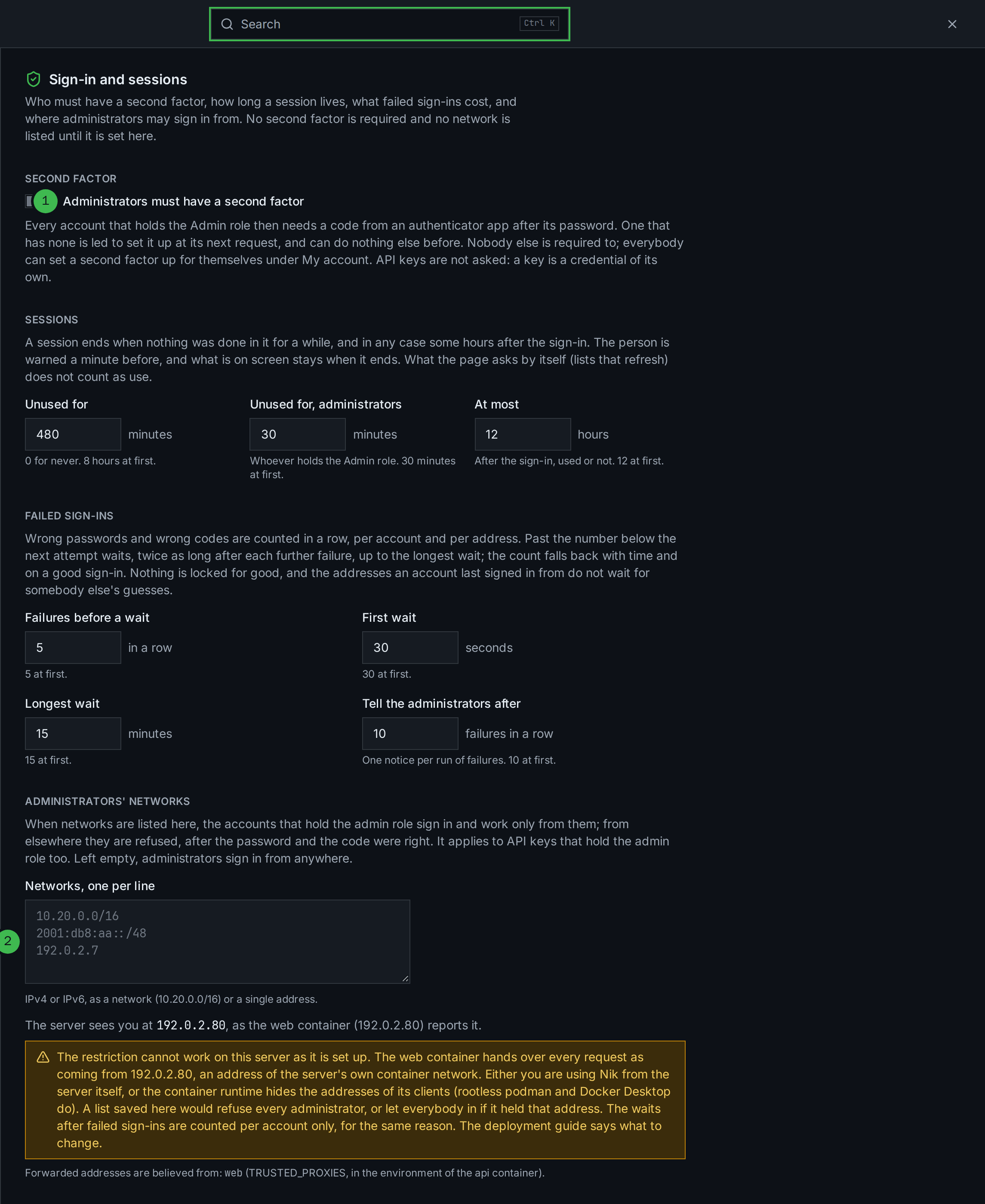
| Setting | Default |
|---|---|
| Administrators must have a second factor | off |
| Session ends after no use | 8 hours; 30 minutes for an administrator |
| Session ends at most after | 12 hours (SESSION_TTL_HOURS until set here) |
| Failed sign-ins before a wait | 5; first wait 30 seconds, doubling up to 15 minutes |
| Administrators are told after | 10 failures in a row |
| Administrators' networks | empty: from anywhere |
- Set up your own second factor first (My account), and keep its recovery codes.
- Turn on Administrators must have a second factor 1. From that moment an administrator without one can only set one up.
- Before listing Administrators' networks 2, read the line The server sees you at … under it from another machine. If it is an address of the container network, the server cannot see client addresses: leave the list empty. The page then says so in a warning, as in the picture, taken on Docker Desktop.
The client's address
The waits per address and the administrators' networks need the backend to know where a request comes from. The web container writes the address it saw in X-Forwarded-For; the backend believes it only from TRUSTED_PROXIES (web in Compose). Keep FORWARDED_ALLOW_IPS empty, as the Compose file has it; remove any override that sets it to *.
| Set-up | The address the backend gets | Per-address waits, administrators' networks |
|---|---|---|
| Docker Engine on Linux, as root | The client's own (a browser on the server itself shows the container gateway) | Work |
| Podman as root | The client's own | Work |
| Rootless Podman, rootless Docker | One address for everybody | Do not work: the page says so and refuses a list; failures are counted per account |
| Docker Desktop (Windows, macOS) | One address for everybody | Do not work |
| A reverse proxy on the host in front of the port | The proxy's address | Do not work |
To give the backend real addresses under rootless Podman, run the stack with Podman as root. On an install without containers nothing is to be set.
Getting back in
A person who lost their phone uses a recovery code; without codes, an admin resets their second factor under Accounts and roles. For the last administrator, or a network list that keeps every administrator out, run on the server:
# Take the second factor of an account away: it signs in with its password and sets one up again
docker compose exec api python -m app.account reset-second-factor <username>

# Empty the administrators' networks: administrators sign in from anywhere again
docker compose exec api python -m app.account clear-admin-networks
Each is written to the audit log under server console. The first also ends the account's sessions and removes its recovery codes; the password is unchanged.
Bulk action limits
Platform settings › System › Bulk actions lists the bulk jobs and, for an admin, holds three limits. They are kept in the database and change without a restart.
| Limit | Default | Range |
|---|---|---|
| Rows one bulk action takes | 5,000 | 1 to 50,000 |
| Done before the answer (more goes on in the background) | 50 | 0 to 500 |
| Closing incidents is confirmed by typing above | 100 | (deleting always is) |
See Act on many at once.
Related
- Environment variables — every variable and its default
- Keys and secrets — the secrets in
./secrets - Health and audit — thresholds, workers, audit log
- Accounts, roles and sign-in — the user side of the policy
- Security — how sign-in is protected