Types, fields and pages
Decide what an incident holds and how its page looks: incident types, fields and sections, pages, SLA timers, and what is done with an alert before it becomes an incident.
You need
The permission incidents.configure: the Admin role. Everything here is under Platform settings › Incidents.
| Section | Sets |
|---|---|
| Types | The types of incident: their fields, sections, close reasons, pages and views |
| All fields | Every field an incident can hold |
| SLA | The timers of each type and the minutes they allow |
| Pre-processing rules | What is done with a fetched item before it becomes an incident |
Incident types
A type says which fields its incidents have, where they are on the page, and how one is closed. An incident given no type is Unclassified.
Seven types ship, and are yours to change: Unclassified, Phishing, Malware, Network intrusion, Data leak, Access abuse, Vulnerability. Content packs can add more.
Create a type
- Open Platform settings › Incidents › Types and press New type.
- Give its name (
Business e-mail compromise) and press Create the type. It starts with the key facts every incident has. - Choose a Colour and write What it is for.
- Press Save the type. Incidents of the type follow at once.
Fields and sections
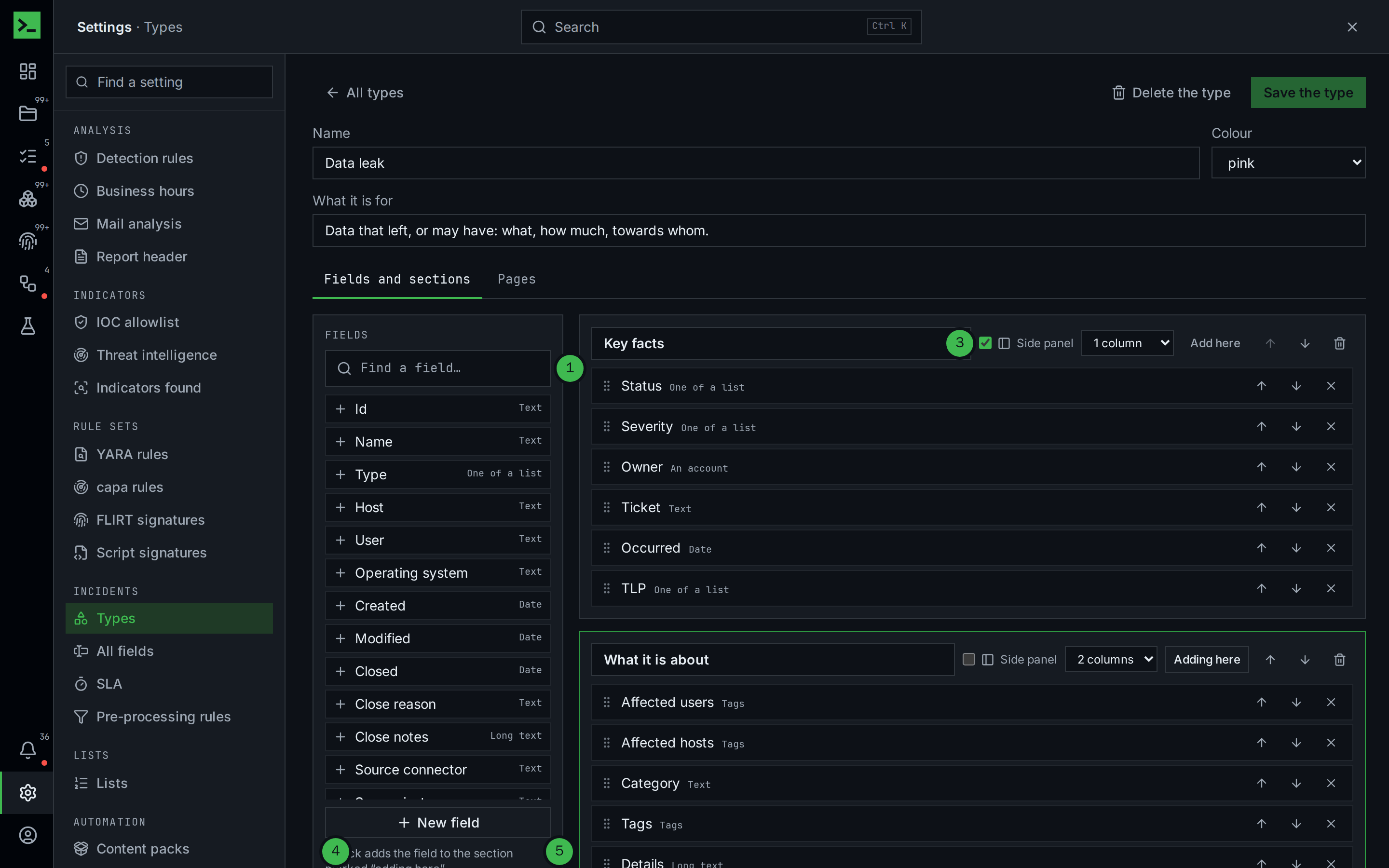
On the tab Fields and sections:
- 1 The fields of the registry, on the left (Find a field…). A click adds a field to the section marked adding here; or drag it there. New field makes one of your own.
- 2 The sections of the Summary, on the right. Add a section; give it a title and 1 column or 2 columns. A type has 20 sections at most.
- 3 One section can be the Side panel of the incident page.
- 4 For a field of your own: whether it is required, or required to close. A field required to close holds the closing back while it is empty.
- 5 Close reasons, one per line: what the closing form offers (30 at most). With none, any reason can be written.
Pages of a type
On the tab Pages, the left side lists Tabs of the incident, in this type's order:
- A tab of Nik (War Room, Work plan, Evidence…) can be moved (drag, or its arrows) and hidden (its eye), not redrawn.
- The Summary is a page: it is arranged on the right, and never hidden.
- Add a page… adds a page of your own: its name is its tab. It is arranged like the Summary. A type has ten pages of its own at most.
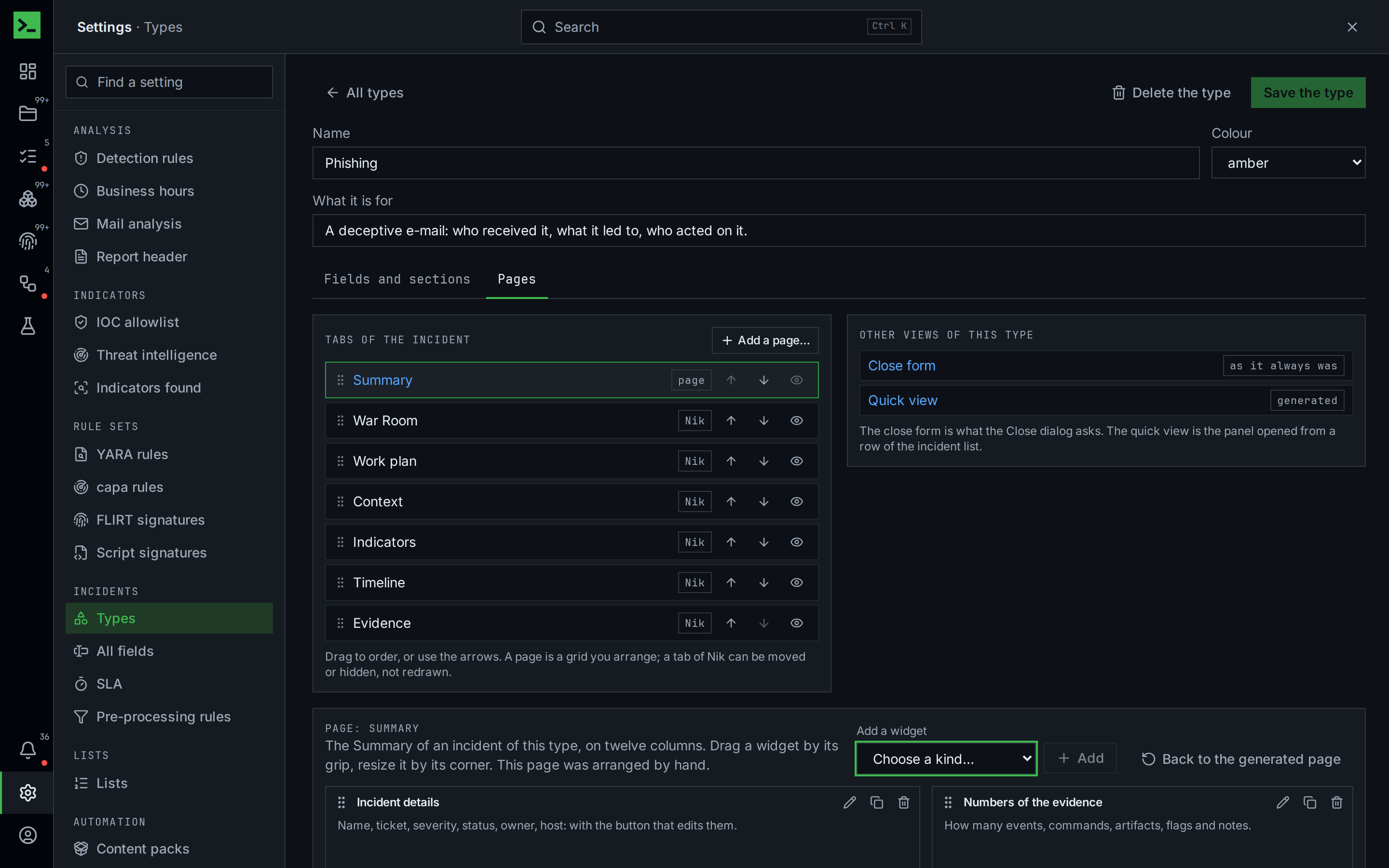
A page is a grid of twelve columns. Drag a widget by its grip, resize it by its corner, or use the arrow keys on the grip (Shift to resize). To add one, choose a kind in Add a widget and press Add:
| Widget | Shows |
|---|---|
| Incident details | Name, ticket, severity, status, owner, host, user, OS, the suspicious window |
| A section of fields | One section of the type, with an Edit |
| Numbers of the evidence | Counters per source, flags, notes |
| Flags and notes | What was flagged and written, in time order |
| Timers | The SLA timers |
| Evidence, War Room, Work plan, Indicators | Those parts of the incident |
| Script buttons | Up to eight buttons that run scripts (Scripts) |
| Chart of a dashboard | One widget of a dashboard, narrowed to what this incident shares (a field you choose) |
| Linked incidents | Up to ten incidents that are related or share indicators |
| A text | A text of your own: what to check first, who to call |
The pencil of a widget sets its title and what it shows. A type that never arranged its Summary shows the one Nik makes from its sections; Back to the generated page returns to it.
Other views of a type
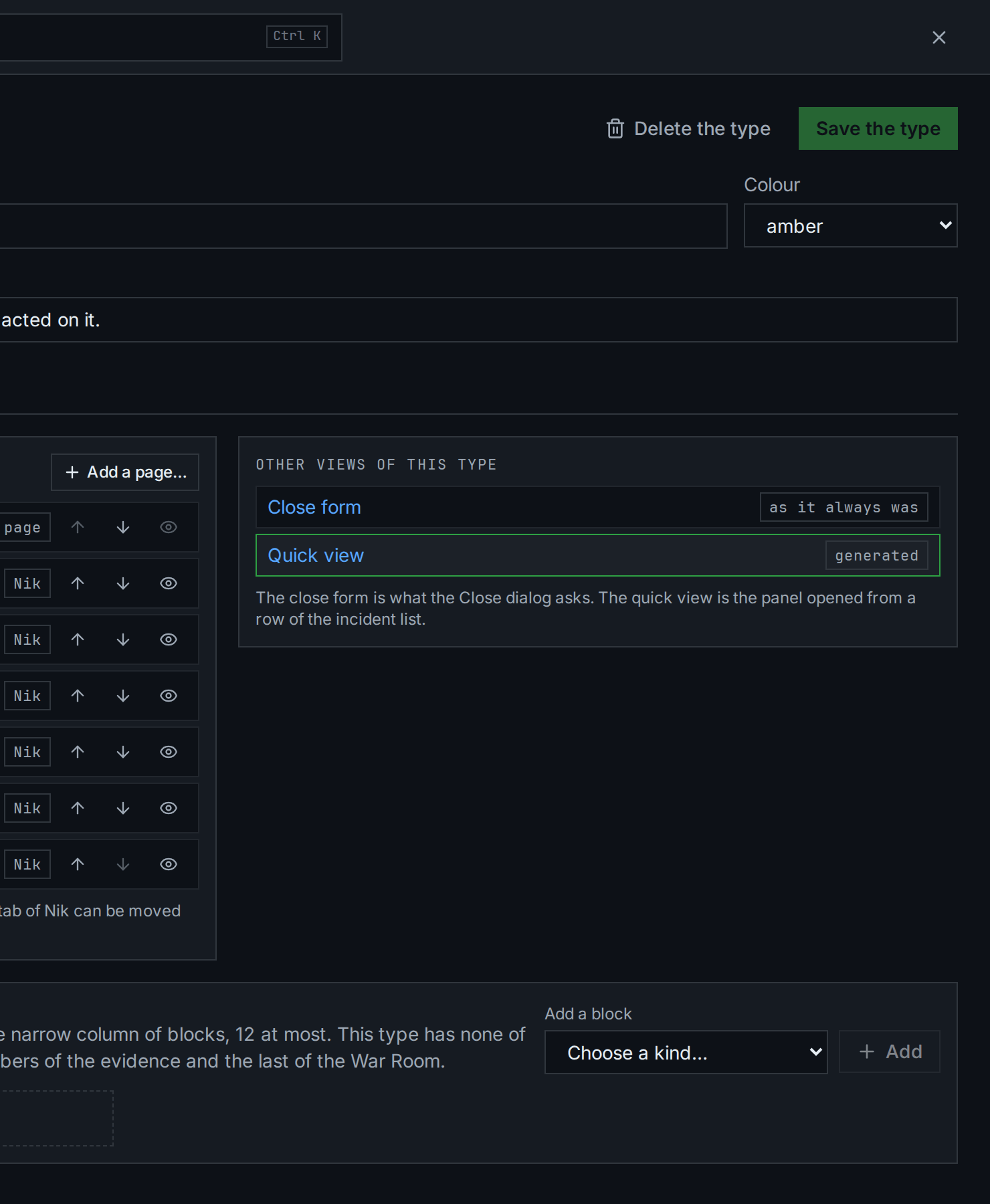
Under the tabs, Other views of this type:
- Close form: the sections the Close dialog shows, besides the reason and a note. A field marked to close must be filled. With no section, the dialog asks the reason, a note and the fields marked to close.
- Quick view: the blocks of the panel opened from a row of the incident list (12 at most). Add a block: the details, a section, the numbers, the timers, the last of the War Room, the linked incidents, a text. Back to the generated view forgets them.
All fields
Platform settings › Incidents › All fields lists every field an incident can hold: its name, type, and where it is used.
- Press New field. Give the Label, What it is for, the type, and (for a choice) Choices, one per line.
- Tick On every type of incident, or leave it to the types that list it.
| Type | Holds |
|---|---|
| Text · Long text | Text |
| Number · Yes / no · Date | A number, true or false, a date |
| One of a list · Several of a list | Choices |
| An account · A role | A user or a role |
| Address (URL) · Tags · Indicator | A link, tags, a typed indicator |
| Table | Rows with columns (text, number, yes/no, date, choice, URL) |
| Timer | An SLA timer |
| JSON | Any value |
- A field has one name for one thing: its name and type never change; its label and choices do.
- A choice taken away stays on the incidents that hold it, and can no longer be chosen.
- A field is deleted only when no type lists it and no incident holds a value of it.
- Playbooks read every field by its name:
{{ incident.business_unit }}.
SLA
Platform settings › Incidents › SLA sets, for each Type of incident, the timers its incidents get.
- Choose the type.
- For each Timer (Time to assign, Time to contain, Time to close, or a timer field of your own), tick it on and give the Minutes allowed, by severity if you want (same keeps the general value).
- Tick Business hours only to count only working hours (those of Analysis › Business hours, in UTC).
- Save. It applies to the incidents of this type from now on, and to those still open.
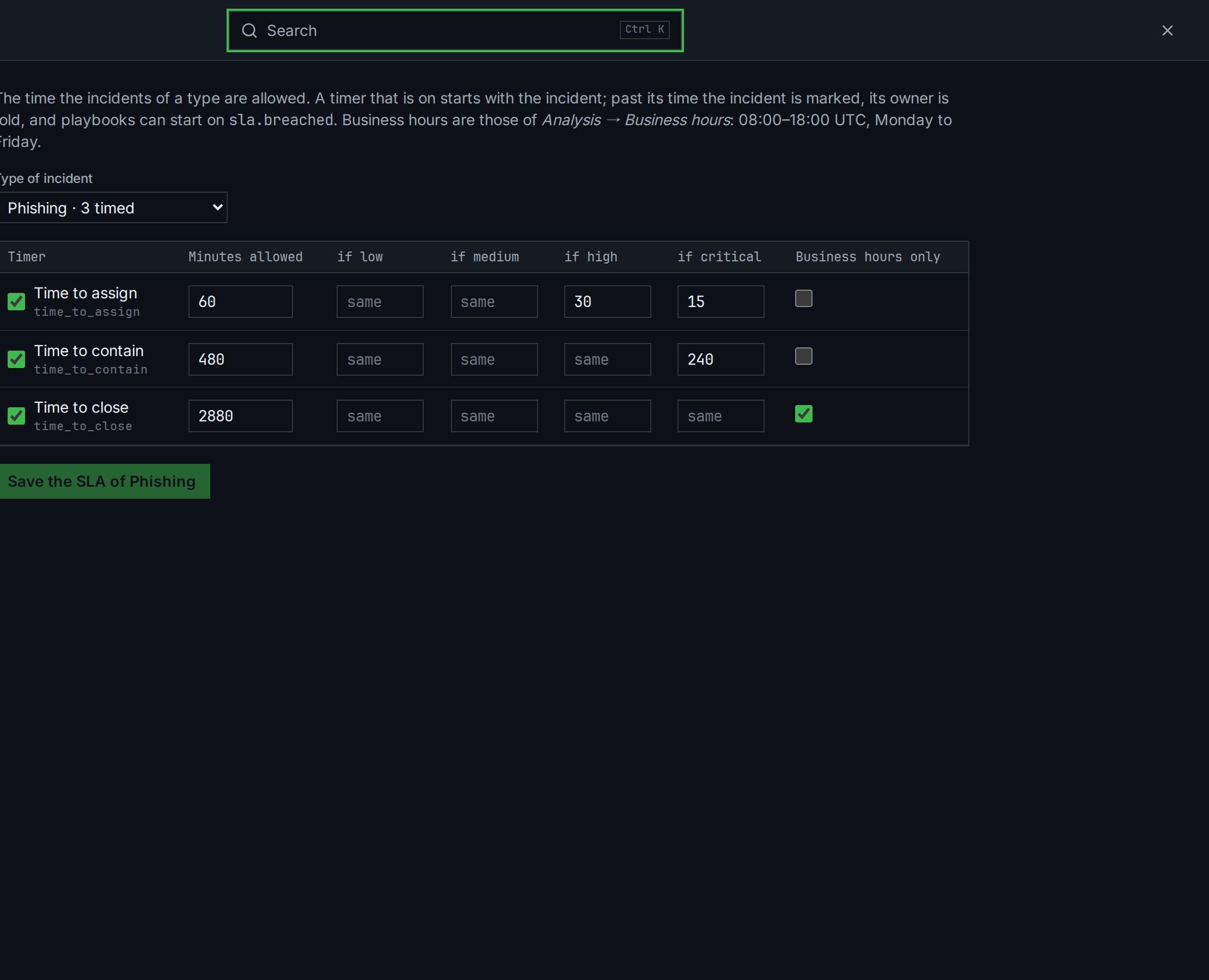
- A timer starts with the incident. Time to assign stops when the incident has an owner, time to close when it is closed (and goes on if reopened), time to contain when a playbook or a person stops it.
- Past its time a timer is breached, once: the incident is marked, its War Room says so, its owner is told, and
sla.breachedstarts the playbooks waiting for it (Triggers and events). - The timers show in the panel beside the tabs. Whoever works incidents pauses, starts and stops one; a playbook can too (Start a timer, Pause a timer, Stop a timer).
Pre-processing rules
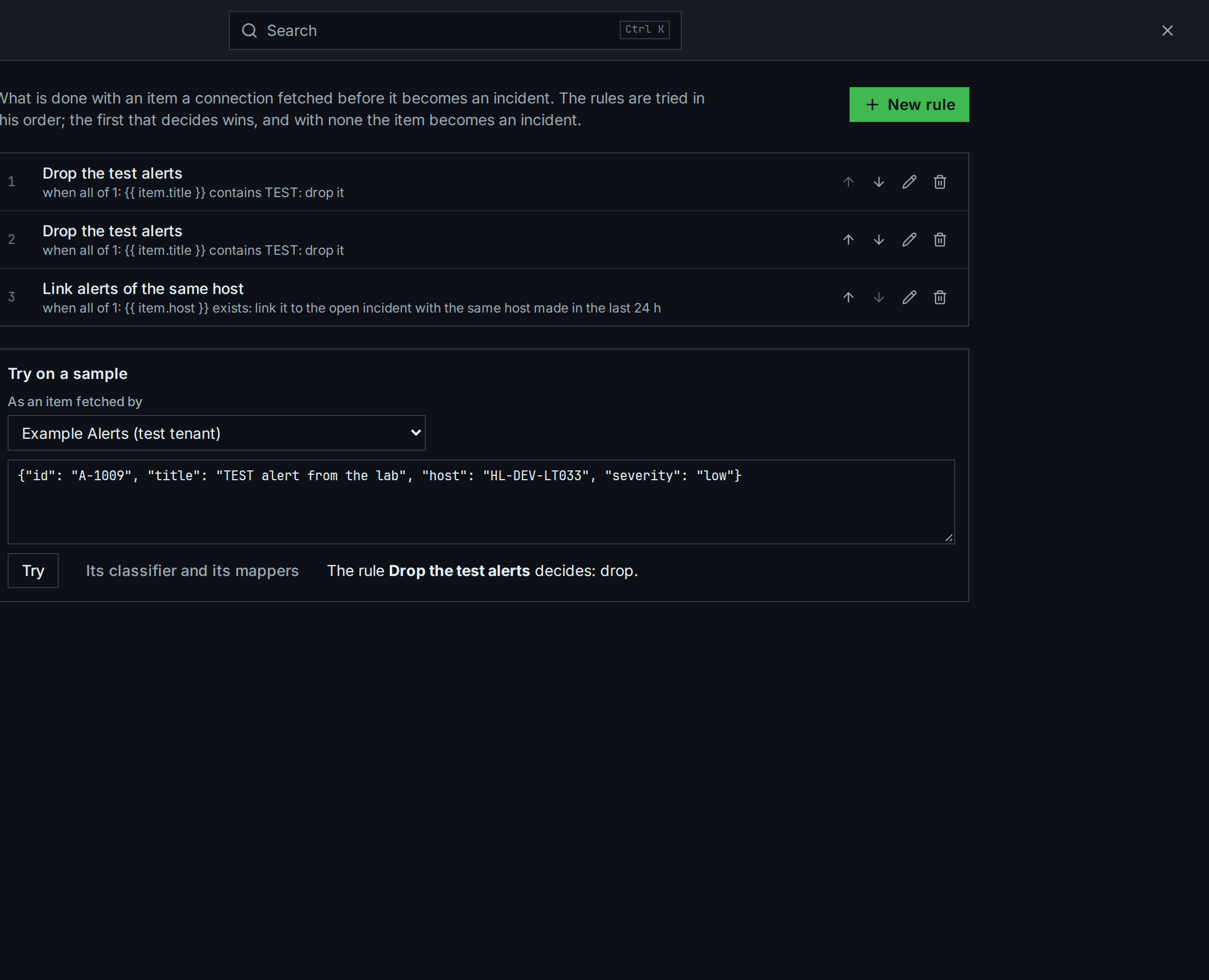
Platform settings › Incidents › Pre-processing rules decides what happens to an item an instance fetches, before anything is written. The rules are tried in order; the first that decides wins. With none, the item becomes an incident.
- Press New rule and give it a Name.
- When (nothing for always): comparisons over
incident(what the item would become: its type and the fields its mapper gave) anditem(what came). -
Then:
Action Does Drop it No incident; the item does not come back Link it to an open incident No incident: the item becomes a War Room line of the open incident with the same values in the fields you name ( name,host,username,ticket,severity,source_id,type), made in the last so many hours if you say soClose it as a duplicate The incident is made and closed at once as a duplicate Ask a script A script gets itemandincidentand returns{"action": "drop"},{"action": "link_to_existing", "same": ["host"]},{"action": "close_duplicate", "same": ["name"]}, or anything else to go on -
The rule is on, then Save the rule.
A rule that finds no incident that is the same decides nothing, and the next is tried.
Try on a sample: choose the instance (As an item fetched by), paste an item as JSON, press Try. It shows the classifier, the mappers and which rule would decide, and does nothing.