Lists and the allowlist
Keep the values that features and playbooks read by a name (the allowlist, your domains, your mail servers, keywords, hosts) in lists you can edit, import, export and swap.
You need
Platform settings › Lists › Lists is for who manages lists: the playbooks role, or an admin (permission lists.manage).
Two kinds of list
This page is about the lists of Platform settings › Lists. The lists of the Indicators page, which group indicators and can be watched, are on The Indicators page. They show here too, read-only.
The Lists section
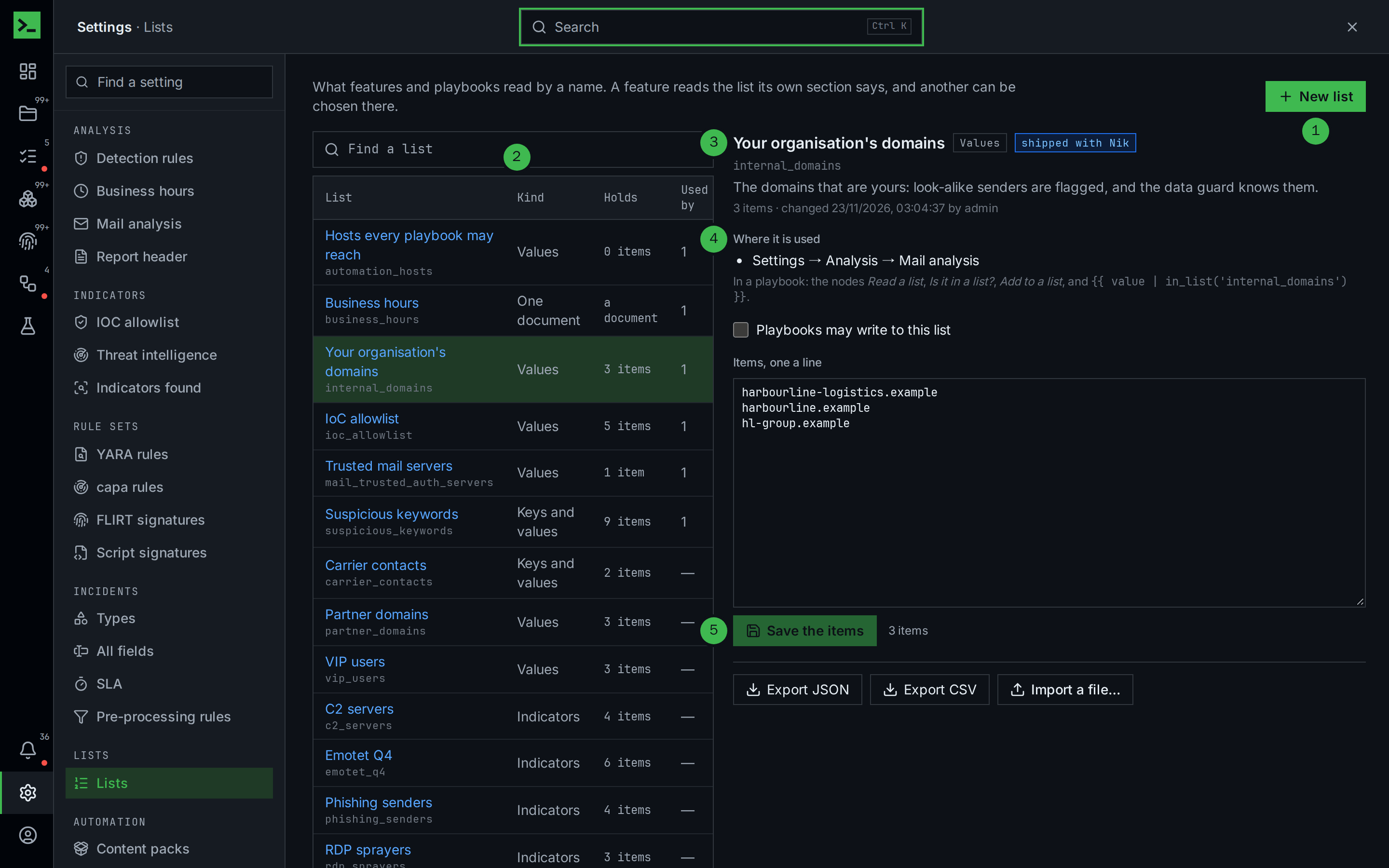
- 1 New list.
- 2 Find a list, and the table: List, Kind, Holds, Used by. Right-click a row for Open and Copy the name.
- 3 The chosen list: its label, its kind, shipped with Nik or read here only, its name, what it holds, who changed it last.
- 4 Where it is used: the features and playbooks that read it.
- 5 Its items, and Save the items.
- Export JSON, Export CSV, Import a file…, Delete the list.
The address of the section is /settings/lists/all; ?open=<name> opens one list.
Kinds
| Kind | Holds | Edited as |
|---|---|---|
| Values | Items, one a line: domains, networks, names… | A box, Items, one a line |
| Keys and values | Each item is a key with a value | Rows, Add a row |
| One document | A single JSON document | The document, as JSON, Save the document |
| Indicators | A list of the Indicators page | Read here only: changed where indicators are |
The items of a list of values or of keys are of one type: Text, Domains, Hosts, Networks, Addresses, E-mail addresses, Users, URLs, Indicators or Keywords. Nik checks each item against it.
The lists Nik ships
| List | Name | Kind | Read by |
|---|---|---|---|
| IoC allowlist | ioc_allowlist |
Values (indicators) | The allowlist |
| Your organisation's domains | internal_domains |
Values (domains) | Mail analysis, the data guard |
| Trusted mail servers | mail_trusted_auth_servers |
Values (hosts) | Mail analysis |
| Suspicious keywords | suspicious_keywords |
Keys and values (label, pattern, severity, description) | Detection rules |
| Business hours | business_hours |
One document (hours in UTC) | Business hours, SLA timers |
| Hosts every playbook may reach | automation_hosts |
Values (hosts) | Network and data of Automation |
They are yours to change. They cannot be deleted.
Make a list
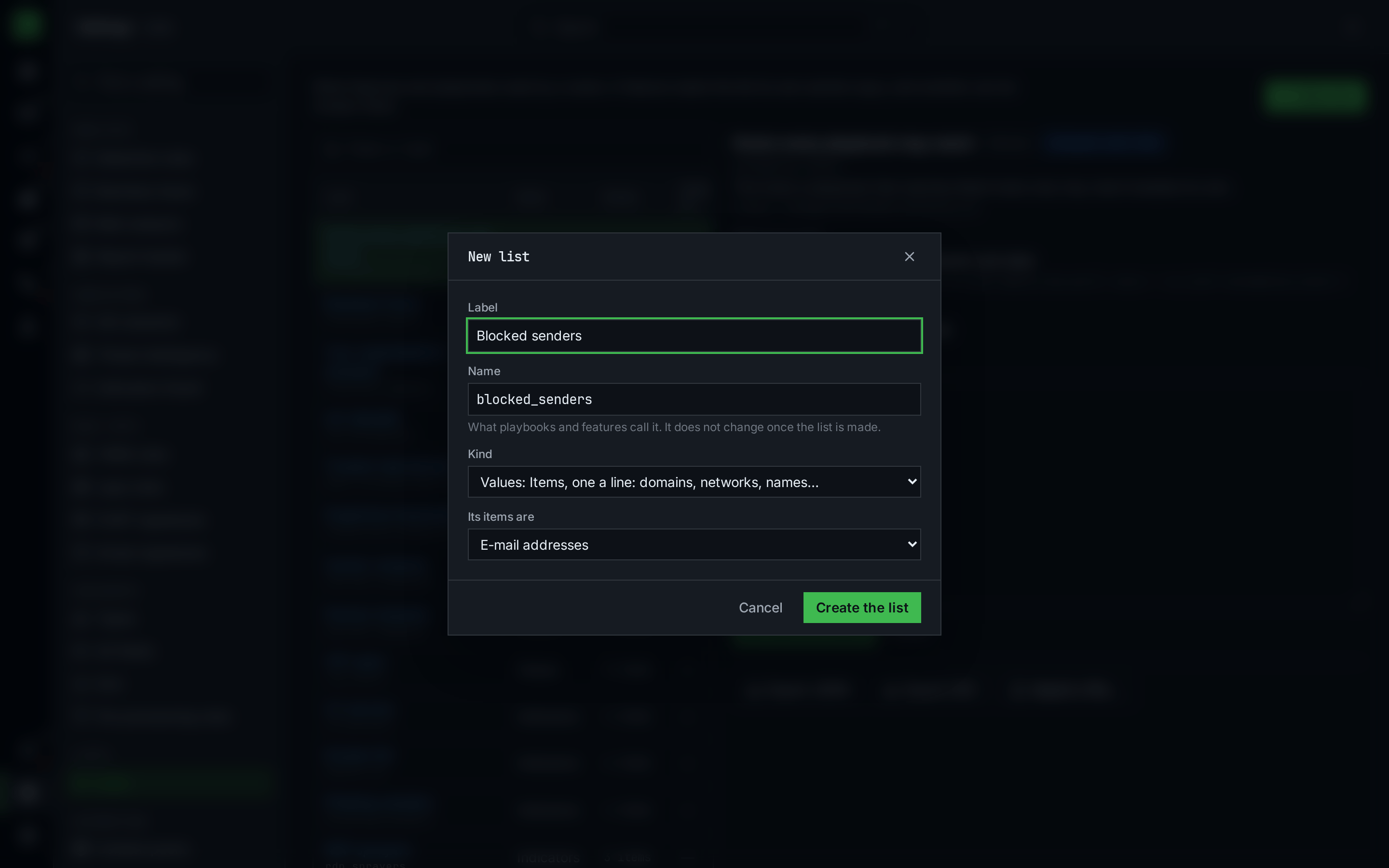
- Press New list.
- Label: what people read.
- Name: what playbooks and features call it. It follows the label; it starts with a letter, holds lowercase letters, digits and
_, 2 to 49 characters, and never changes once the list is made. - Kind, and Its items are for a list of values or keys.
- Press Create the list.
Fill a list
- Type the items in Items, one a line.
- Press Save the items. The count of items is beside it.
- Press Add a row, fill the key and its value (a text, or JSON).
- The × of a row removes it.
- Press Save the items.
- Write the JSON in The document, as JSON.
- Press Save the document.
A list holds 50,000 items at most. A key is 500 characters at most.
Nothing you have not saved is lost without asking: leaving the list, or opening another, asks first.
Playbooks may write to this list
Tick Playbooks may write to this list to let the playbook nodes Add to a list and Remove from a list change it. Unticked, playbooks only read it.
Import and export
| Button | What it does |
|---|---|
| Export JSON | The list as JSON. |
| Export CSV | The items as CSV (not for a list that is one document). |
| Import a file… | Replaces the items with those of a .csv, .txt or .json file. |
Where a list is used
Where it is used names every feature and playbook that reads the list. In a playbook:
- the nodes Read a list, Is it in a list?, Add to a list, Remove from a list;
- the filter
{{ value | in_list('my_list') }}in an expression.
See Playbook nodes and expressions.
Point a feature at another list
Each feature that reads a list says which one, in its own section of Platform settings:
| Section | The line |
|---|---|
| Analysis › Detection rules | Keywords: reads the list |
| Analysis › Business hours | Hours: reads the list |
| Analysis › Mail analysis | Your organisation's domains: reads the list, Your mail servers and gateways: reads the list |
| Indicators › IOC allowlist | Allowlist: reads the list |
| Automation › Network and data | Hosts: reads the list |
- Make the other list, of the same kind as the one the feature reads.
- In the feature's section, choose it in the select of …: reads the list.
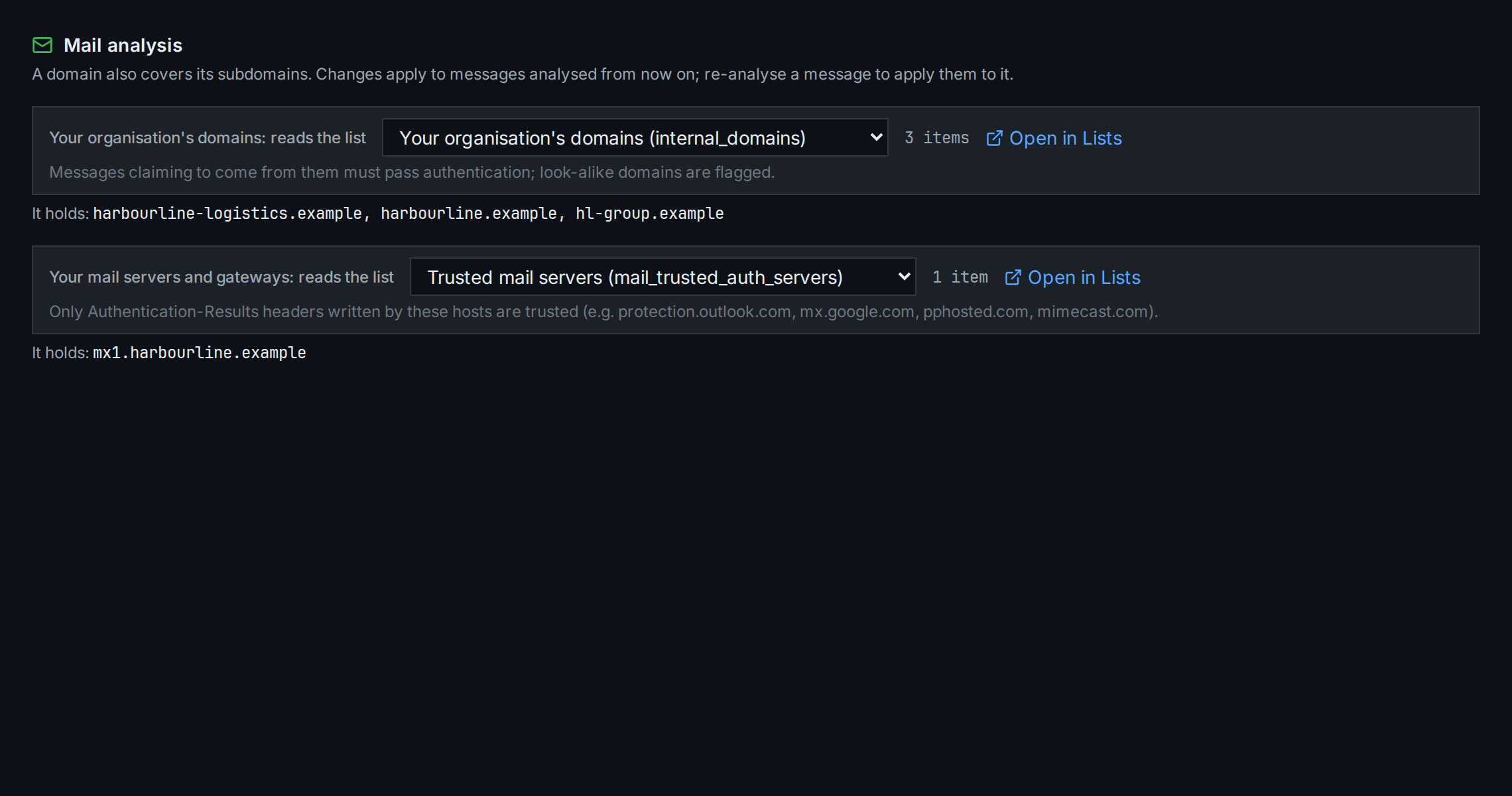
The select offers the lists of the same kind, the one Nik ships first. Open in Lists opens the list that is read, to edit its items. Choosing needs the lists.manage permission.
The IoC allowlist
The allowlist holds known-good values: your own addresses and domains, and well-known services.
| An entry | Matches |
|---|---|
| A domain | The domain, its subdomains, and URLs and e-mail addresses on it |
An IP address or a network (10.0.0.0/8) |
The address, or every address in the network |
| Any other value (a hash) | That exact value |
A line starting with # |
Nothing: a comment |
A value on the allowlist is:
- hidden in an incident's Indicators tab (Show allowlisted shows it) and left out of its exports;
- never sent to a threat-intelligence source;
- left out of the indicators found by themselves;
- what makes a longer value that names it held by the data guard.
To add a value:
- right-click an indicator anywhere and choose Add to the allowlist, or press the shield at the end of its row;
- or select indicators and choose Add to the allowlist…;
- or edit the list
ioc_allowlisthere.
Platform settings › Indicators › IOC allowlist shows which list is read and how many entries it has. Restore defaults puts back the entries Nik ships.
Tip
A change applies at once to every incident: the index keeps everything, and the allowlist only hides.
Items that expire
An item can be given a time after which it is dropped. Once past, it is no longer read: the feature or the playbook sees the list without it.
- In a playbook, the node Add to a list takes
expires_minutes: dropped after so long; empty to keep it. - Through the API, an item added to a list takes
expiresAt. See API.
A watch list of the Indicators page has no expiry on its items; an indicator has its own Expires on (see Edit an indicator).
Delete a list
Delete the list removes a list you made. The lists Nik ships, and the lists of the Indicators page, are not deleted here.