The Indicators page
Keep every indicator Nik knows in one library: filter it, check it, tag it, group it in lists, watch it, and export it to other tools.
Open the library
Press Indicators in the rail (/iocs). The library holds every indicator, whether an incident holds it, an artifact analysed on its own holds it, or an analyst added it.
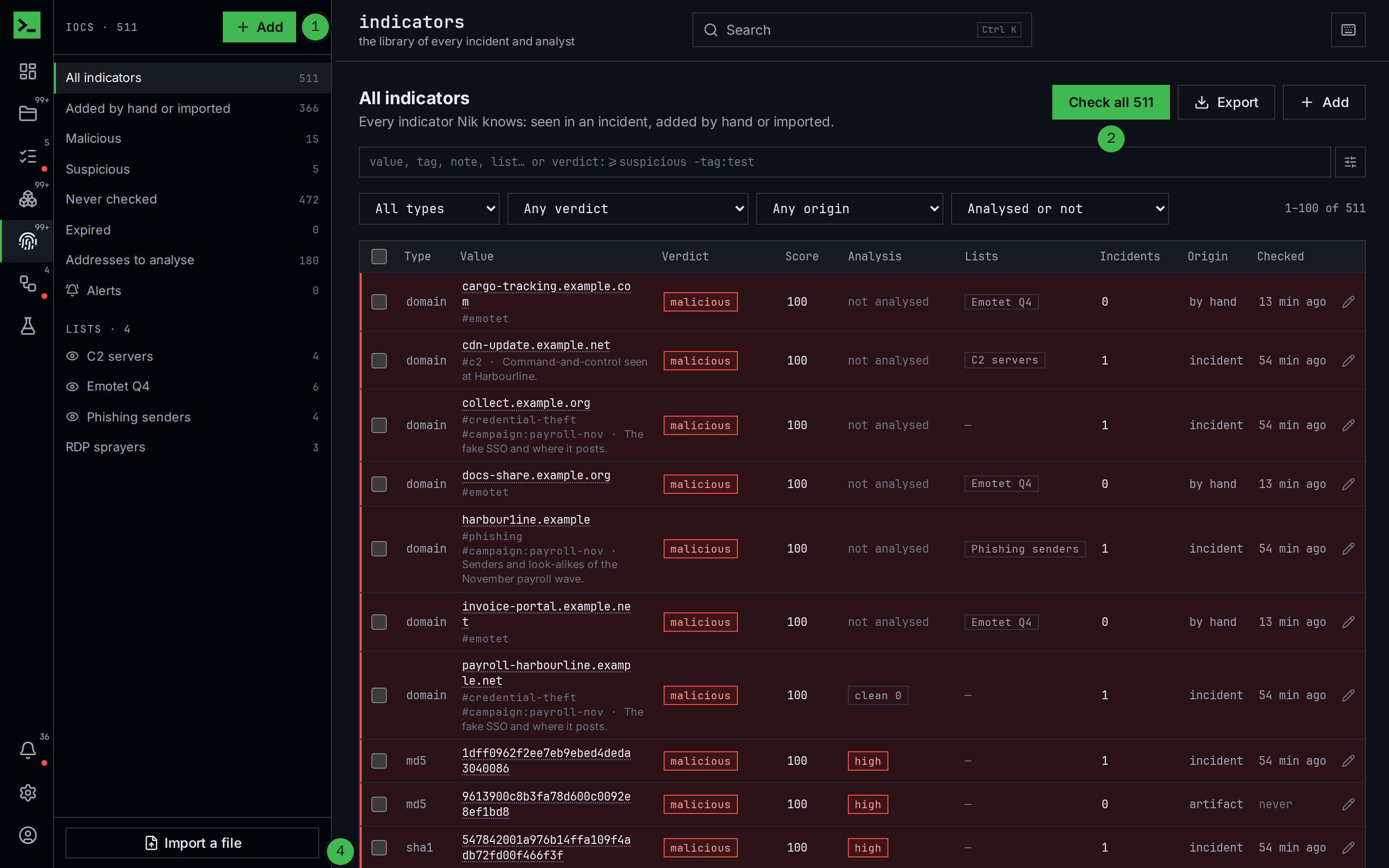
The side panel 1:
- Add opens Add indicators; Import a file at its foot does the same from a file.
- Quick filters: All indicators, Added by hand or imported, Malicious, Suspicious, Never checked, Expired, Addresses to analyse, each with its count.
- Alerts: an incident came to hold an indicator of a watched list. A red count, and a red dot on the rail, when there are some.
- Lists · N: the lists of indicators.
- Hide the indicators panel gives the table the whole width; the Indicators entry of the rail brings it back.
The head of the table 2: Check all N (or Check N selected), Export (or Export N selected), Add.
The filters:
| Filter | Choices |
|---|---|
| Filter indicators | A value, a tag, a note, a list, or the query language: verdict:>=suspicious -tag:test |
| Type | All types, or one |
| Verdict | Any verdict, Malicious or suspicious, Malicious, Suspicious, Harmless, Never checked |
| Origin | Any origin, From an incident, From an artifact, Added by hand |
| Analysis | Analysed or not, Analysed by Nik, Addresses to analyse |
The table 4: Type, Value, Verdict, Score, Analysis, Lists, Incidents, Origin, Checked. Click a header to sort. A row is tinted by its verdict only: red for malicious, amber for suspicious.
- Click a value for the indicator's page (see The window of an indicator).
- never sent out marks a value that never leaves Nik; held one the data guard holds.
- Analysis opens what Nik saw when it analysed the value itself.
- A list name in Lists opens that list.
Add one or many
- Press Add, or drop a file of indicators anywhere in the window, or paste several values on the app.
- One or many: type, paste or drop a file, or Choose a file (5 MB at most). Nik reads plain text, CSV with a
valuecolumn, a STIX 2.1 bundle, a MISP event and Nik's own JSON export. Defanged values (hxxps://evil[.]example) are read as meant; the type is recognised by itself. - Before anything is saved, What Nik found says: New indicators, Already in the library (kept as they are), Repeated, Private or allowlisted (saved, never sent out), and what was not recognised.
- Group them in a list? No: save them one by one, an existing list, or Yes: a new list… with its name and Alert me when an incident holds one of them.
- For all of them: tags, a note, Expires on. Tick Check them when saved to check them at once.
- Press Save N indicators.
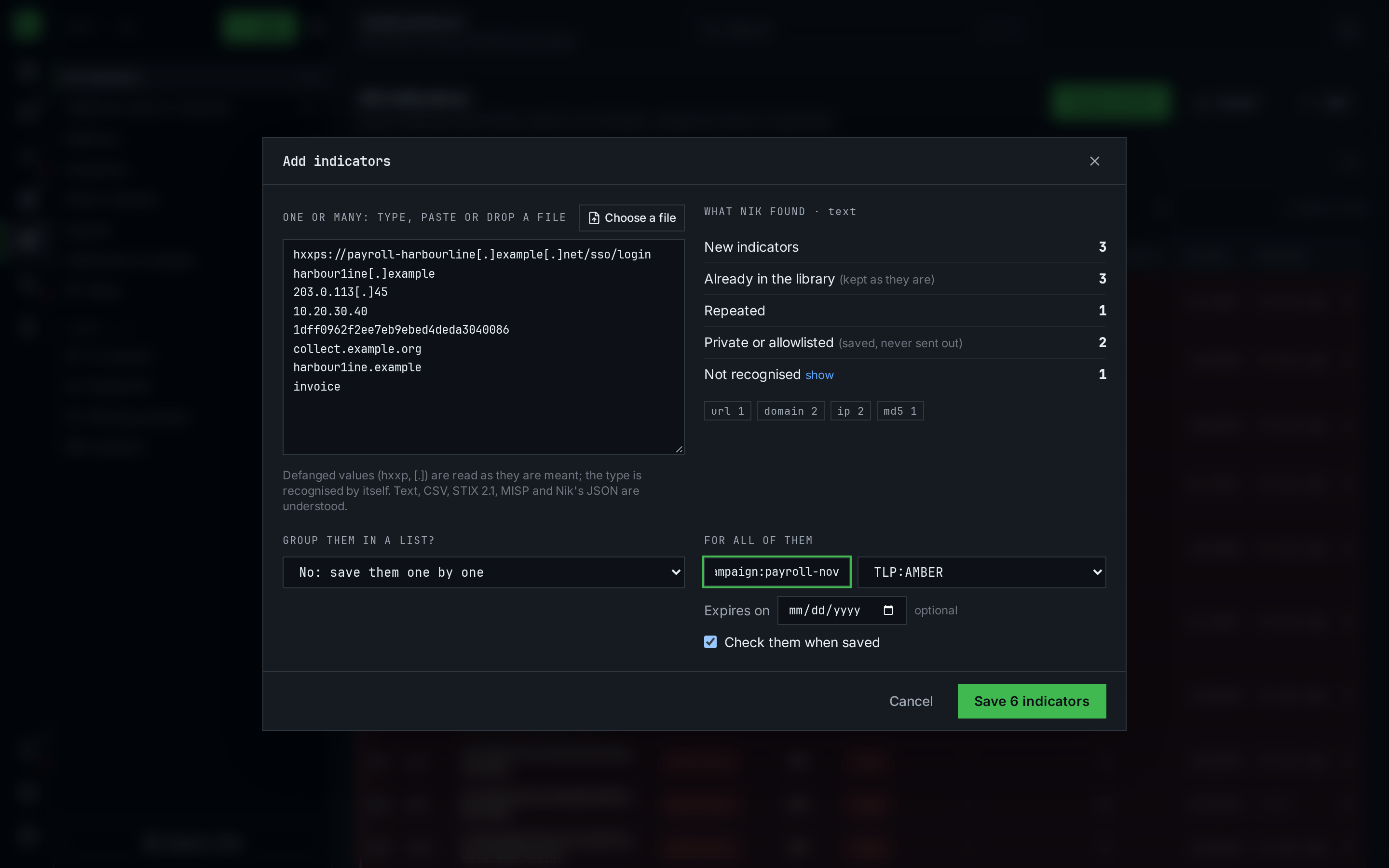
An indicator the library already has is kept as it is, and joins the list too.
Edit an indicator
Press the pencil at the end of a row (Edit
| Field | What it does |
|---|---|
| Tags | Free labels, separated by spaces. |
| Note | What you know about it. |
| Classification | TLP:CLEAR, TLP:GREEN, TLP:AMBER, TLP:RED (never sent out). A TLP:RED value is never sent to a source. |
| Expires on | Past this day the indicator is marked expired and left out of exports and feeds. |
Check many
- Tick rows (or Select all … that match), or tick nothing to act on everything the view keeps.
- Press Check N selected or Check all N.
- The dialog counts: To ask, Still fresh, reused, Never sent out, Takes about, and Per source the requests against what is left of today's quota. Values held by the data guard are counted apart and not asked.
- Choose Only missing or expired answers or Ask everything again, and press Start.
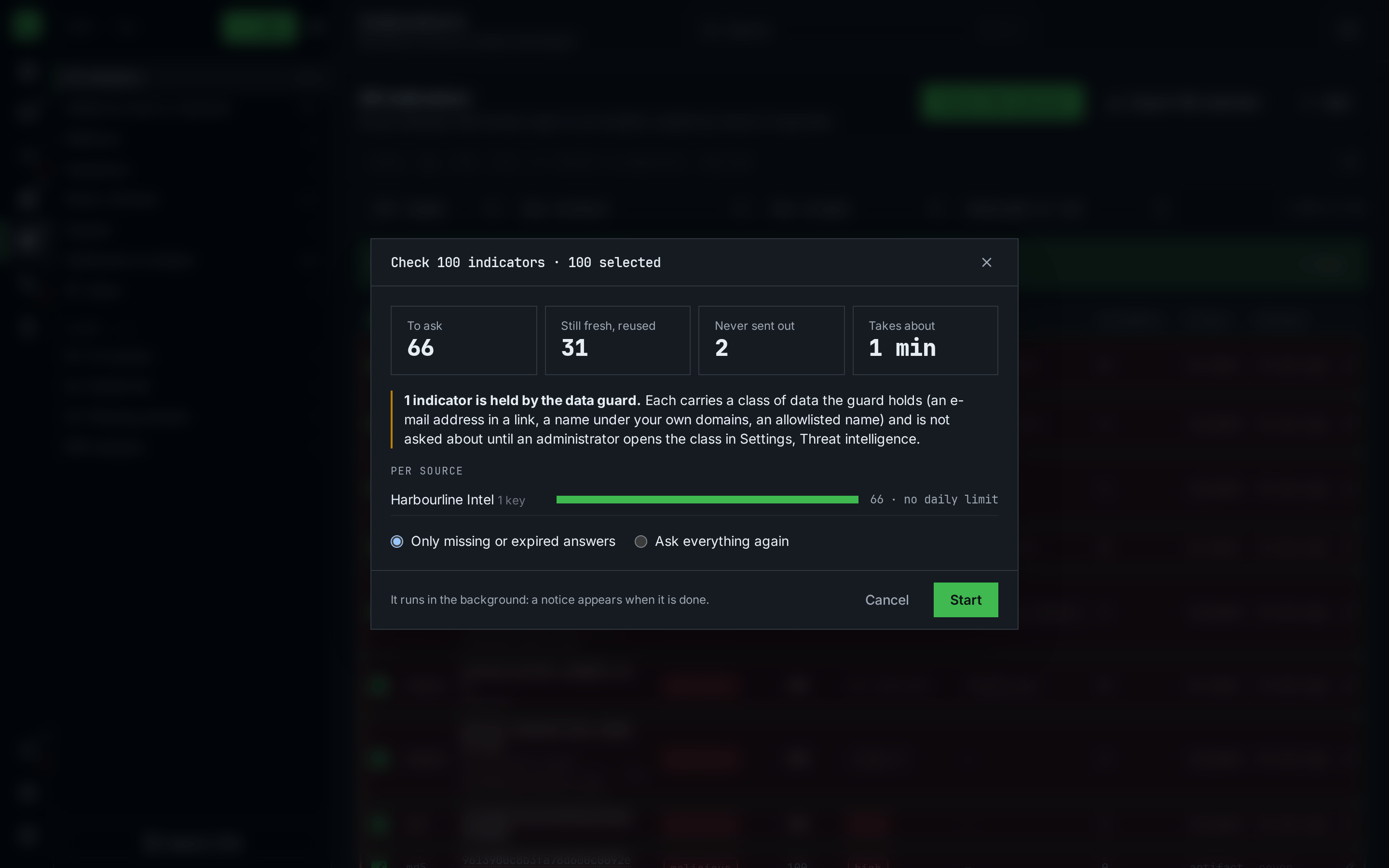
The check runs in the background, with its progress at the top of the library and Stop. When a source's quota is used up the check says Check waiting and goes on by itself when the quota resets. Held values read held in the table.
You need
The analyst role to check, tag, add and remove. A viewer can filter, export and copy.
Addresses to analyse
Addresses to analyse lists the URLs and domains Nik has not visited yet.
- Select some and choose Analyse the addresses….
- Analyse addresses shows what will be visited and what is left out (analysed already, not an address, never visited: allowlisted, internal, TLP:RED).
- Press Visit N addresses. The isolated browser visits them one after the other, at most 20 at a time; the others wait for the next time.
A visit is seen by the site. See Links.
Export
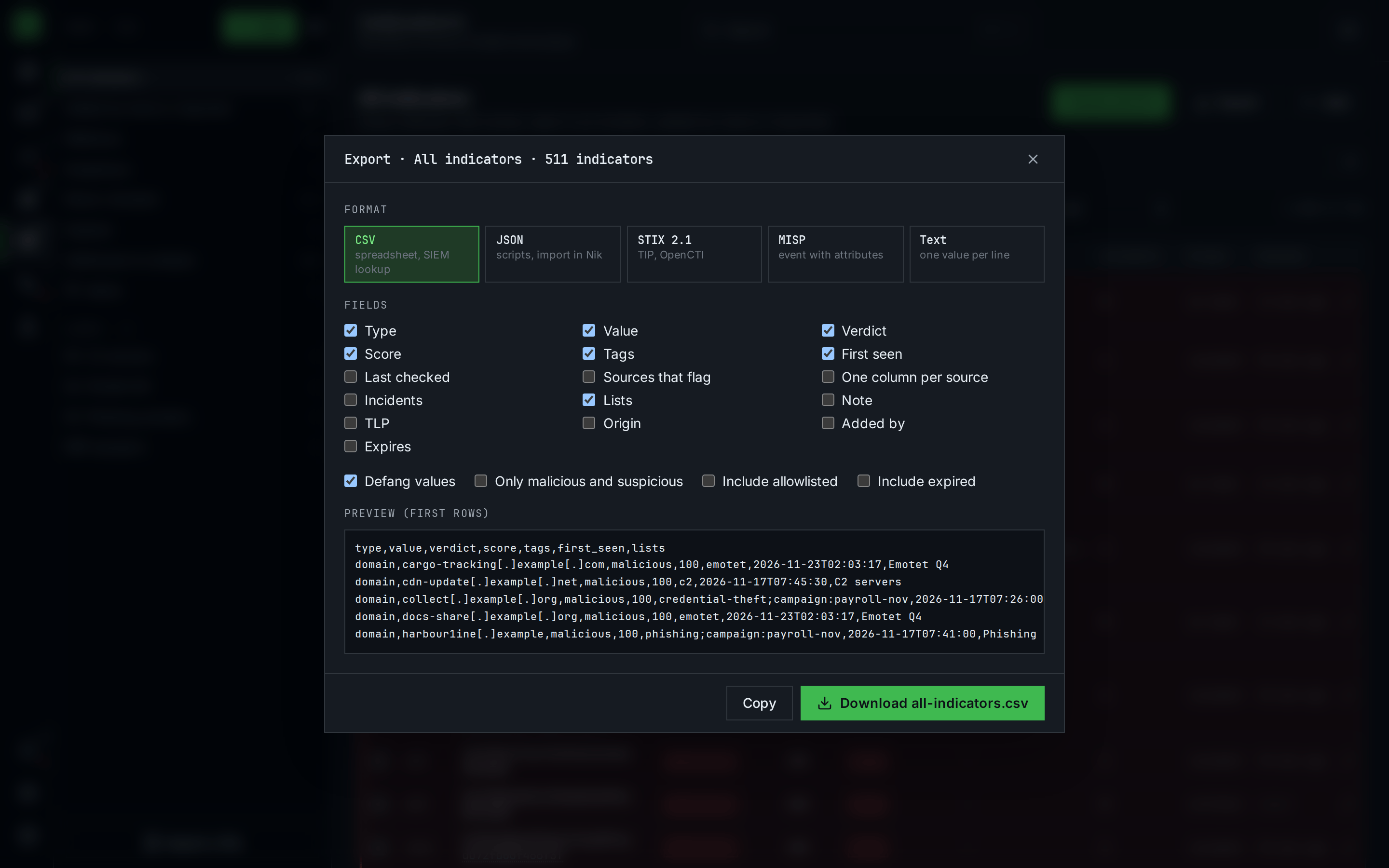
- Press Export (or Export N selected).
- Choose the Format:
| Format | For |
|---|---|
| CSV | A spreadsheet, a SIEM lookup |
| JSON | Scripts, and import back into Nik with tags and lists |
| STIX 2.1 | A TIP, OpenCTI |
| MISP | An event with attributes |
| Text | One value per line |
- For CSV and JSON, tick the Fields. Type, Value, Verdict, Score, Tags and First seen are ticked at first; the choice is remembered.
- Tick Defang values, Only malicious and suspicious, Include allowlisted, Include expired as needed. Preview (first rows) shows the result.
- Download, or copy it.
Copy the values, in the menu of a selection, copies one value per line.
Lists of indicators
A list is a named group of indicators, with its own page (/iocs/lists/<id>). The same indicator can be in several lists.
Make a list
- Select indicators and choose Save as a new list…, or Save as a list on an incident's Indicators tab.
- Or group them when you add them.
The form asks Name, Description (source, campaign, ticket…), Classification (the TLP of the list) and Watch this list. Press Make the list.
The page of a list
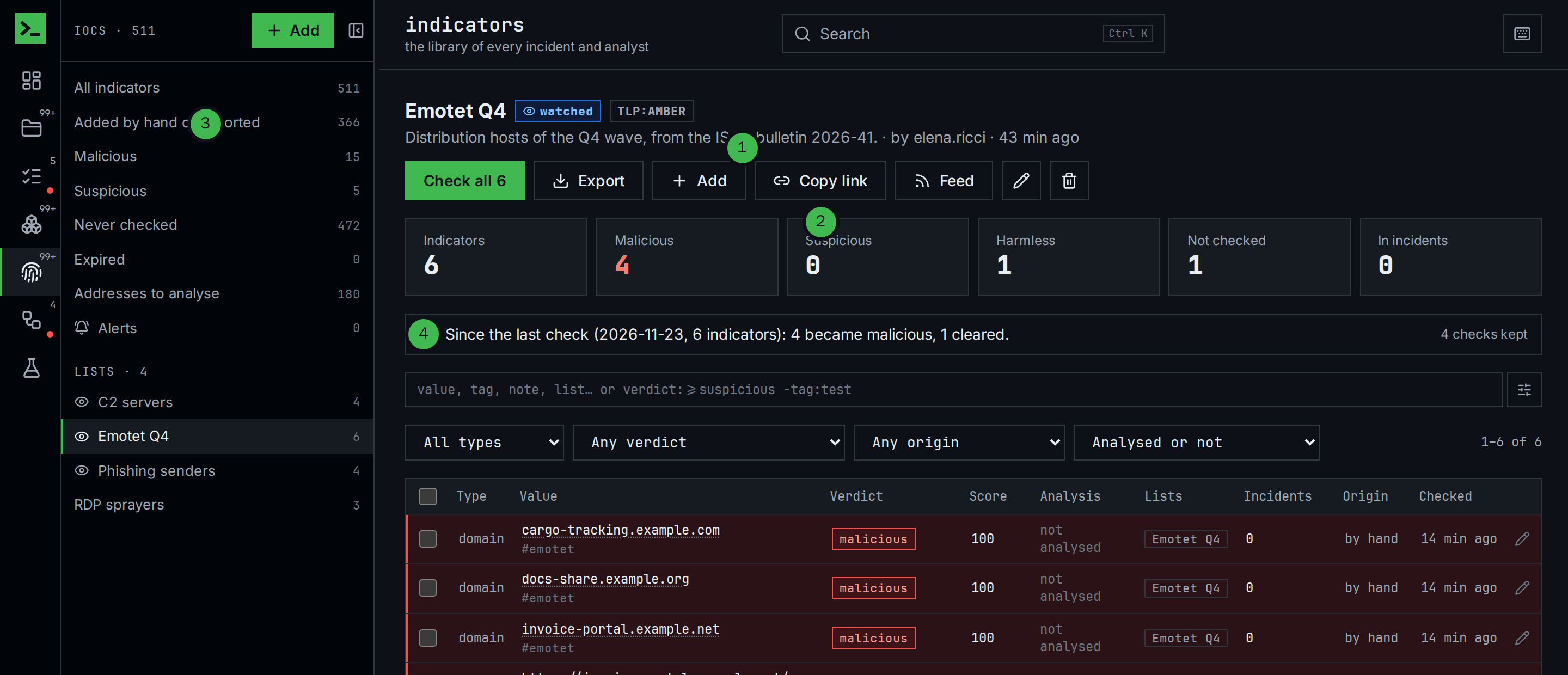
- 1 Its name, watched, its TLP, its description and author.
- Copy link, Feed, the pencil (Edit the list), the bin (Remove the list).
- 2 The counters: Indicators, Malicious, Suspicious, Harmless, Not checked, In incidents.
- 4 The history of its checks.
| Action | What it does |
|---|---|
| Add to a list… (selection) | Puts the selected indicators in a list. |
| Take out of this list… (selection, on a list) | Takes them out of the list; they stay in the library. |
| Remove the list | Its author or an admin. The indicators stay in the library. |
| Right-click a list in the panel | Open, Add indicators to it…, Copy the name. |
Watch a list
With Watch this list on, Nik raises an alert when an incident comes to hold one of its indicators:
- under Alerts in the panel, with a red dot on the rail;
- in the audit log;
- to the
ioc.watch_hitwebhook.
A watch is of a list, not of an indicator: watch an indicator by putting it in a watched list.
History of the checks
Each time the whole list is checked (Check all on its page, or the playbook that checks the watched lists every week), the page says what changed: since the last check: 4 became malicious, 1 cleared. Open the line for What the last check changed and The checks of this list. A row the last check changed says so under its verdict. A check of a selection or a filter is not a check of the list.
Feed
Feed gives the address a firewall, a SIEM or a SOAR polls for the list as it is now. Allowlisted and expired indicators are left out; a TLP:RED list has no feed.
- Make an API key with read scope (Platform settings › Access › API keys).
- Send it in the
X-API-Keyheader, or as the password of HTTP Basic. - Add
?format=txt(default),csv,json,stixormisp;&types=ip,domain;&flagged=truefor malicious and suspicious only.
Copy the address copies it.
Act on many at once
Tick rows, or Select all … that match, then open the menu of the selection:
| Group | Actions |
|---|---|
| Look up | Check now…, Analyse the addresses… |
| Organise | Change the tags… (add and remove tags in one go), Set the TLP…, Add to a list…, Save as a new list…, Take out of this list…, Add to the allowlist… |
| Take out | Export…, Copy the values |
| Remove from the library…: takes the indicators out of the library and every list, except what an incident still holds, which stays as part of that incident. |
Each asks what it needs, then says what it will do. See Act on many at once.