Find your way around
Know every part of Nik's screen, its menus and its shortcuts.
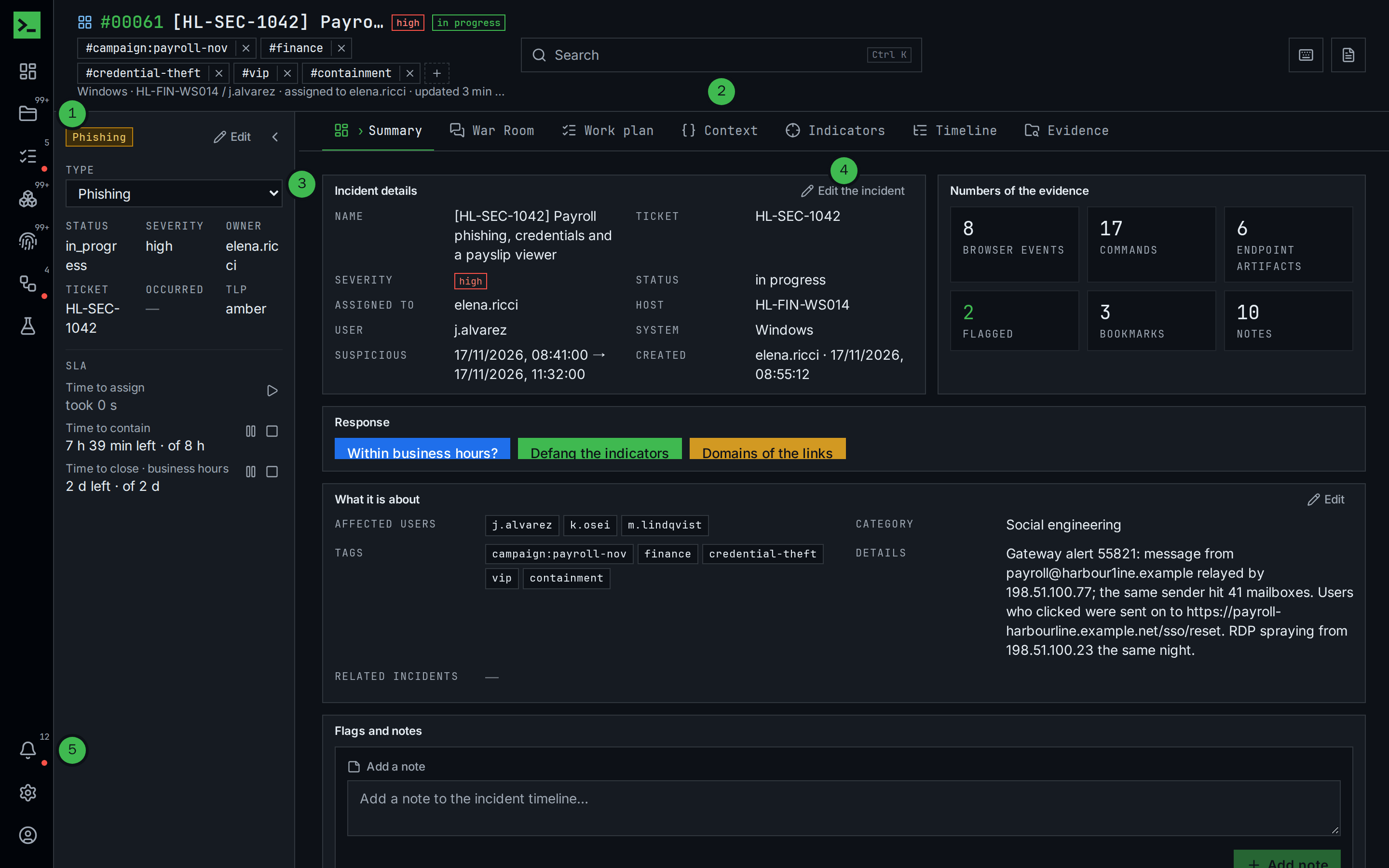
| Part | ||
|---|---|---|
| 1 | The rail | The rail |
| 2 | The header: the name of what is open, the search, the shortcuts, the report | The header |
| 3 | The facts of the incident | An open incident |
| 4 | The tabs of the incident | An open incident |
| 5 | The bell | Notifications |
The rail
The narrow column of icons on the left. Point at an icon to read its name.
| Entry | Opens | You need |
|---|---|---|
| Dashboards | The dashboard you chose for sign-in, or the first. Dashboards | |
| Incidents | The list of incidents. Work an incident | |
| My tasks | What waits for you. The icon counts it, with a dot when something is overdue. My tasks | |
| Artifacts | Every file, e-mail and capture analysed so far (/artifacts). Add evidence |
|
| Indicators | The Indicators page, with its side panel of lists. The Indicators page | |
| Automations | The playbooks, their runs and approvals. Your first playbook | Analyst or Playbooks |
| Playground | A War Room outside any incident, to try commands. Scripts and the Playground | Analyst or Playbooks |
At the foot of the rail:
- the Notifications bell (below);
- Platform settings, the gear;
- your account: your name and roles, My account, Sign out.
An entry is shown only to the accounts whose roles let them use it.
An entry always goes to the first screen of its section
Incidents shows the list, also from an open incident. Automations shows the playbooks, also from the editor. Pressed on that first screen, an entry does nothing. The browser's Back returns to where you were.
A page that takes the whole area (Dashboards, My tasks, Automations, the Playground, Settings) has its own close button at its top right. It goes back to what was open before.
Side panels
The artifacts and the Indicators come with a list in a side panel.
- The button at the top right of the panel (Hide the artifacts panel, Hide the indicators panel) gives the whole width to what is open. Press the rail entry again to bring the panel back.
- Every side panel can be resized: drag its edge. Or focus the edge with Tab and use the arrow keys (Shift for a larger step, Home / End for the narrowest and widest). A double-click or Enter puts the width back. Each panel remembers its width in your browser.
Settings
Platform settings opens a page with the sections on the left, in groups (Analysis, Indicators, Rule sets, Incidents, Lists, Automation, Access, System).
- Type in Find a setting to narrow the sections by name or by what they hold (
password,restore,domains). - Every section has its own address, such as
/settings/access/accounts: bookmark it or send it. - You see only the sections your roles allow.
The header
- The search bar, in the middle of every page. Click it or press Ctrl+K (Cmd+K on a Mac) or /. See Global search.
- Keyboard shortcuts (the keyboard button), the same as ?.
- Incident report, when an incident is open. See Reports and exports.
- read-only, when your roles let you read and not change.
On a narrow window the search bar shrinks to its magnifier first.
An open incident
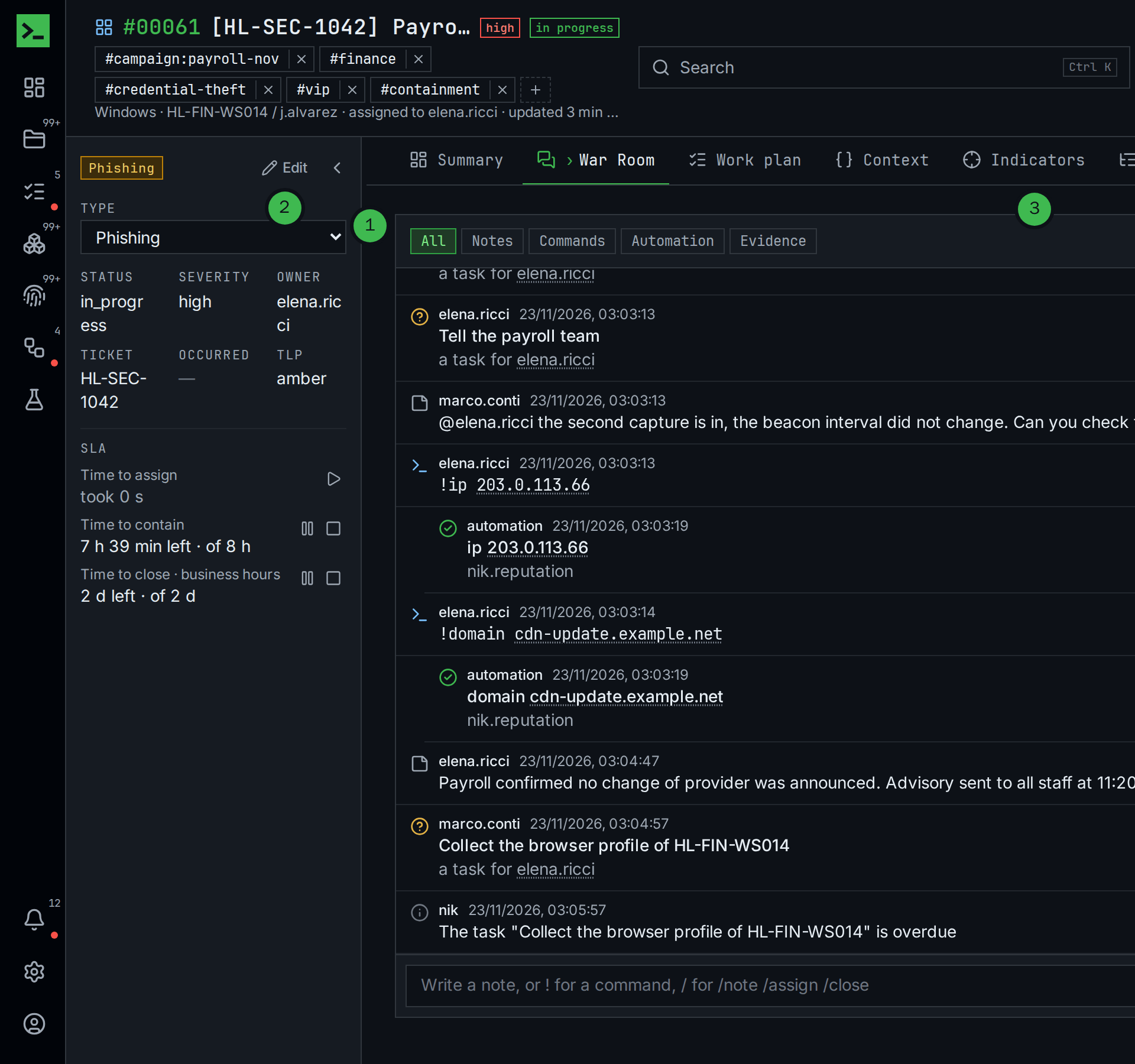
- The facts column 1: the type of the incident and its key facts (status, severity, owner, ticket, TLP, or whatever its type puts there). Edit 2 changes them. The select changes the type: values the new type does not show are hidden, not lost. The arrow folds the column away.
- The tabs 3: Summary, War Room, Work plan, Context, Indicators, Timeline, Evidence, and the pages of its type. A type can reorder and hide tabs. On a narrow window the tabs shorten to icons; the open one always shows its name.
- SLA timers and Mirror appear in the facts column when the type times its incidents or the incident is mirrored. See Work an incident.
More: Summary, timeline and War Room.
Notifications
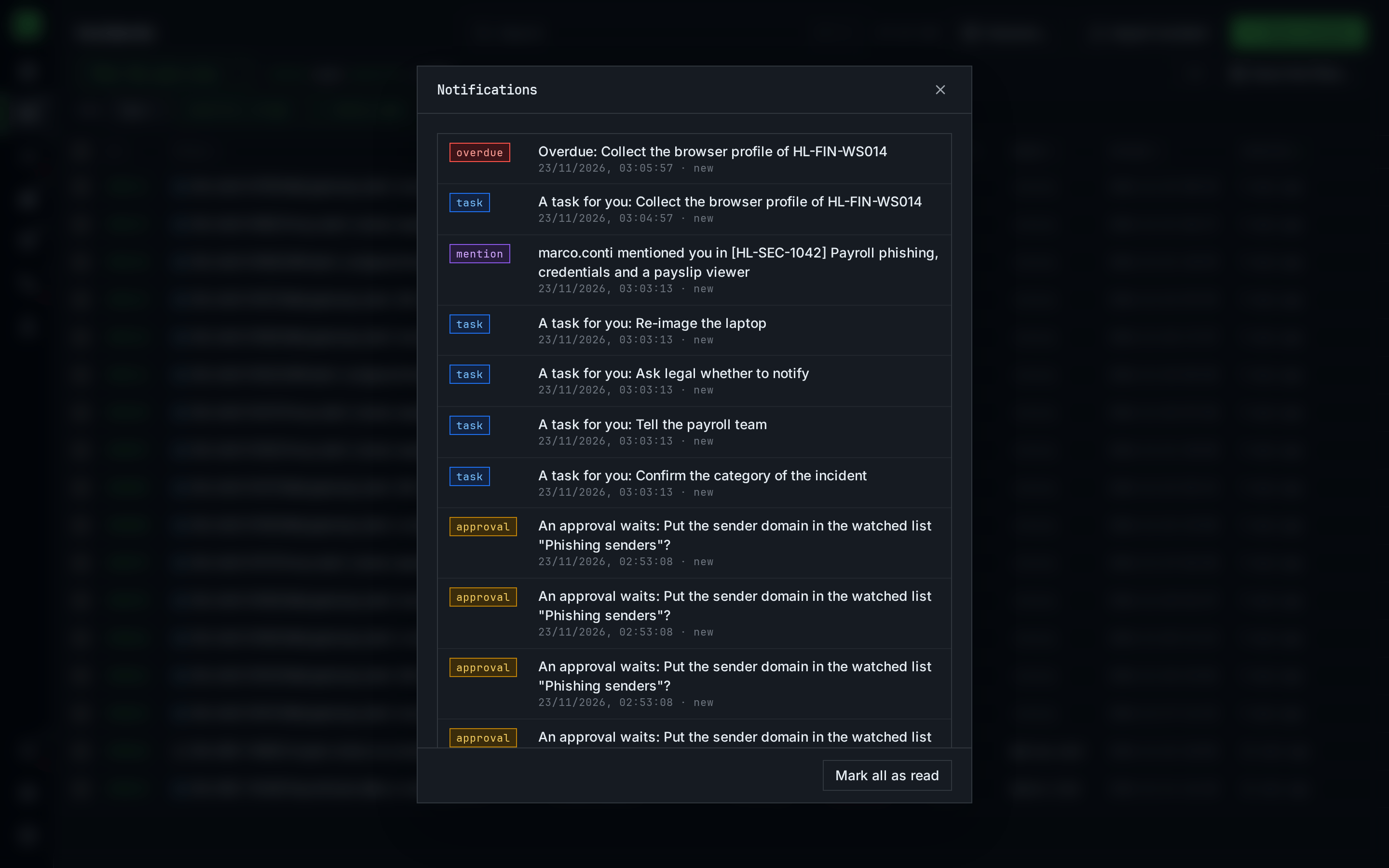
The bell counts what is new. You are told when:
- a task is given to you, or is overdue;
- an approval waits for you;
- a colleague writes
@youin a War Room; - a timer of an incident you own is past its time.
Administrators are also told when a worker stops answering and when it is back, and when a row of the health page gets worse. Click a notification to go where it points.
Progress and the transfers tray
What is on its way always says so the same way:
- a file going up or down shows a bar with how much has passed;
- anything else that takes a moment (a report being built, an export being prepared) shows the blinking skull
(o.o)with a sentence, in or beside the button that started it.
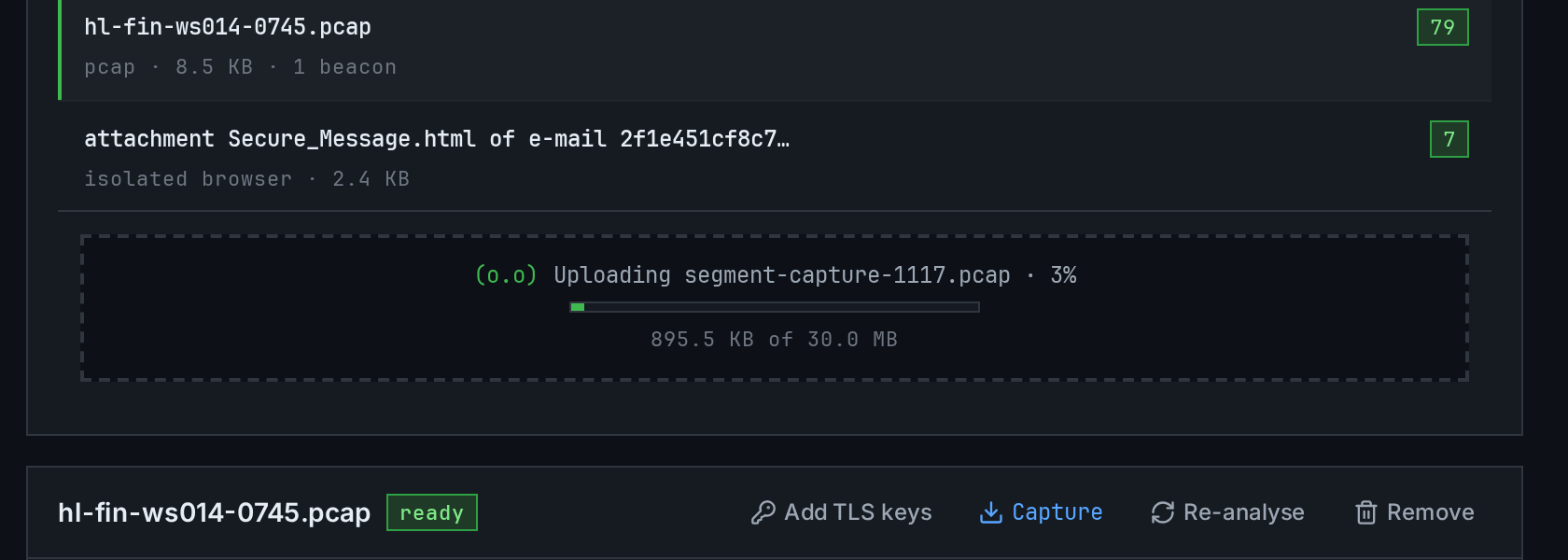
A transfer with no place of its own (a file dropped anywhere, an export started from a menu, a bulk action running in the background) is shown in the Transfers tray at the foot of the window until it ends. An upload cut by a restart of the server stays there with Try again and Dismiss.
Right-click menus
A right-click opens Nik's menu on every page, never the browser's. The menu key or Shift+F10 opens the same menu on what has the focus.
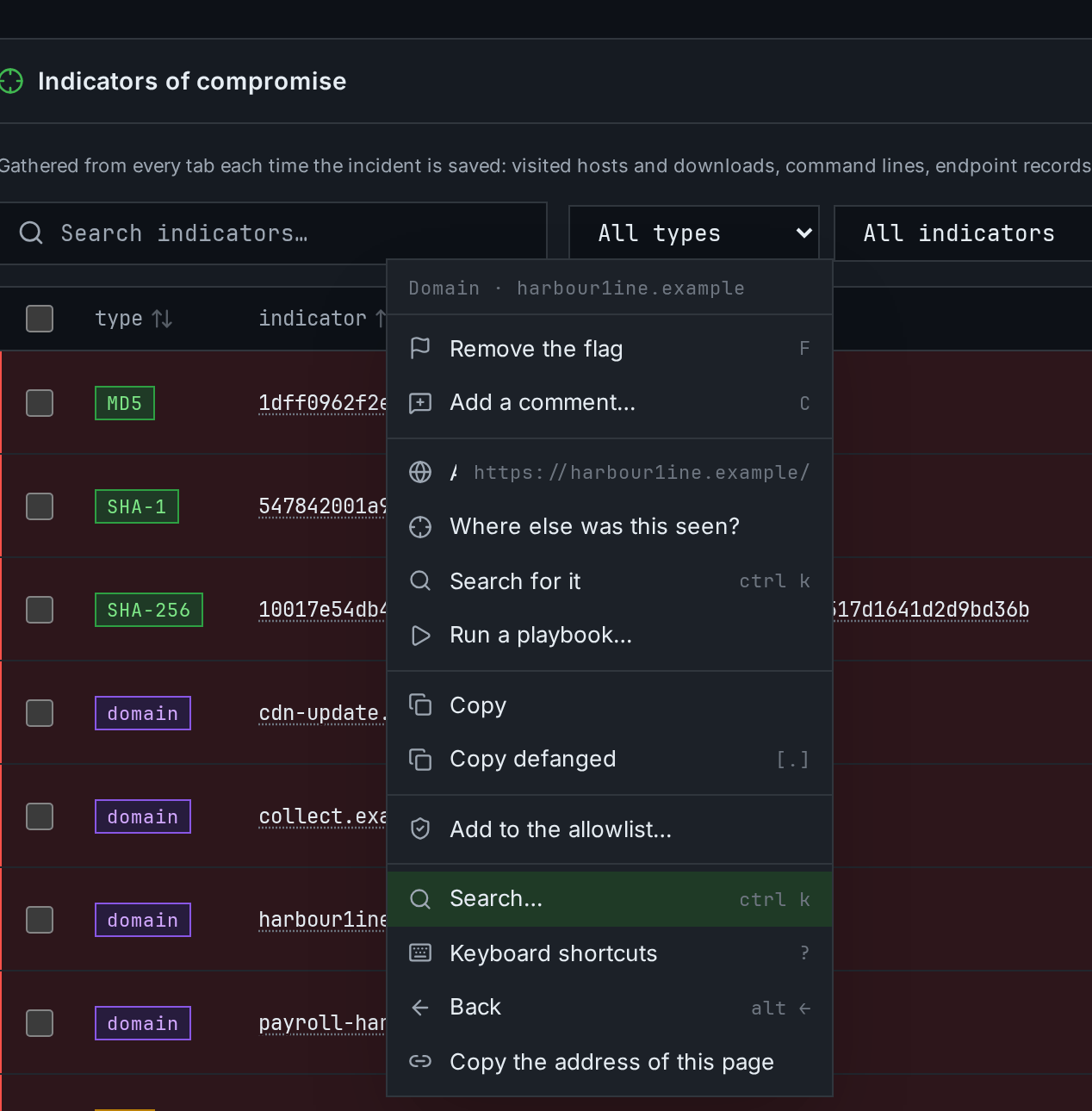
The menu is built from what is under the pointer, innermost first:
| Part | Offers | Where |
|---|---|---|
| The item's own actions | Open, Run a playbook…, Export… | Incidents, artifacts, playbooks, runs, tasks… |
| Flag and comment | Flag the … / Remove the flag, Add a comment… (flags too) | Rows of evidence, events, indicators, inside an incident |
| Indicator | Where else was this seen?, Search for it, Copy, Copy defanged, Add to the allowlist… | Any address, domain, IP, hash or e-mail address |
| Copy | Copy as text, Copy as JSON, or one field | Everywhere |
| Show in the Timeline | Opens the Timeline filtered on the item | Flaggable items |
| Remove or delete | Last, after a line | Lists, notes, tags |
Then, around the item:
- Selected text: Copy; for an address or indicator also Where else was this seen?, Search for it, Add to the Indicators….
- A text field: Cut, Copy, Paste, Select all (greyed with the reason when they do not apply). The first Paste may make the browser ask for the clipboard; Ctrl+V always works.
- A link: Open, Open in a new tab, Copy the address.
- A cell or a line: Copy this cell, Copy this row, Copy this text.
- What the page offers: New incident… and Columns… on the list of incidents, Refresh on lists that have it.
- Always last: Search…, Keyboard shortcuts, Back, Copy the address of this page.
Note
The body of an e-mail, a scanned page and the report are shown in a sealed frame. A right-click inside it is the browser's.
Keyboard shortcuts
Press ? for the list.
| Key | Does |
|---|---|
| F | Flag the row under the pointer, or remove its flag. Removing a flag removes its comments; the notice has Undo. |
| C | Comment on the row under the pointer (it is flagged too). |
| Ctrl+K or / | Search. |
| Ctrl+V | Paste a file, an address or an indicator to analyse it. |
| Shift+F10 or the menu key | The right-click menu of what has the focus. |
| Esc | Close a menu or the dialog on top. |
| Click, Up / Down, Enter | In the list of incidents: quick view of a row, move from row to row, open the incident. |
| Space · Shift+Down / Shift+Up · Ctrl+A | Tick a row · tick the next one too · tick the rows on screen. See Act on many at once. |
F, C and ? act on the row under the pointer, or on the focused row after Tab. They are off while you type and while a dialog is open.
Dictation or an assistive tool?
Untick Single-key shortcuts (F, C, ?) at the bottom of the list. The choice is kept in your browser.
Everything works without a mouse: Tab stops on every row that has a menu, a dialog keeps the focus inside, and Esc closes only the dialog on top.
Nothing unsaved is lost without asking
Most things save themselves as you go. While a form, an editor or a dialog holds changes that are not saved, anything that would take you away asks first: a rail entry, another tab, a link, Back, Esc, a click outside a dialog, signing out.
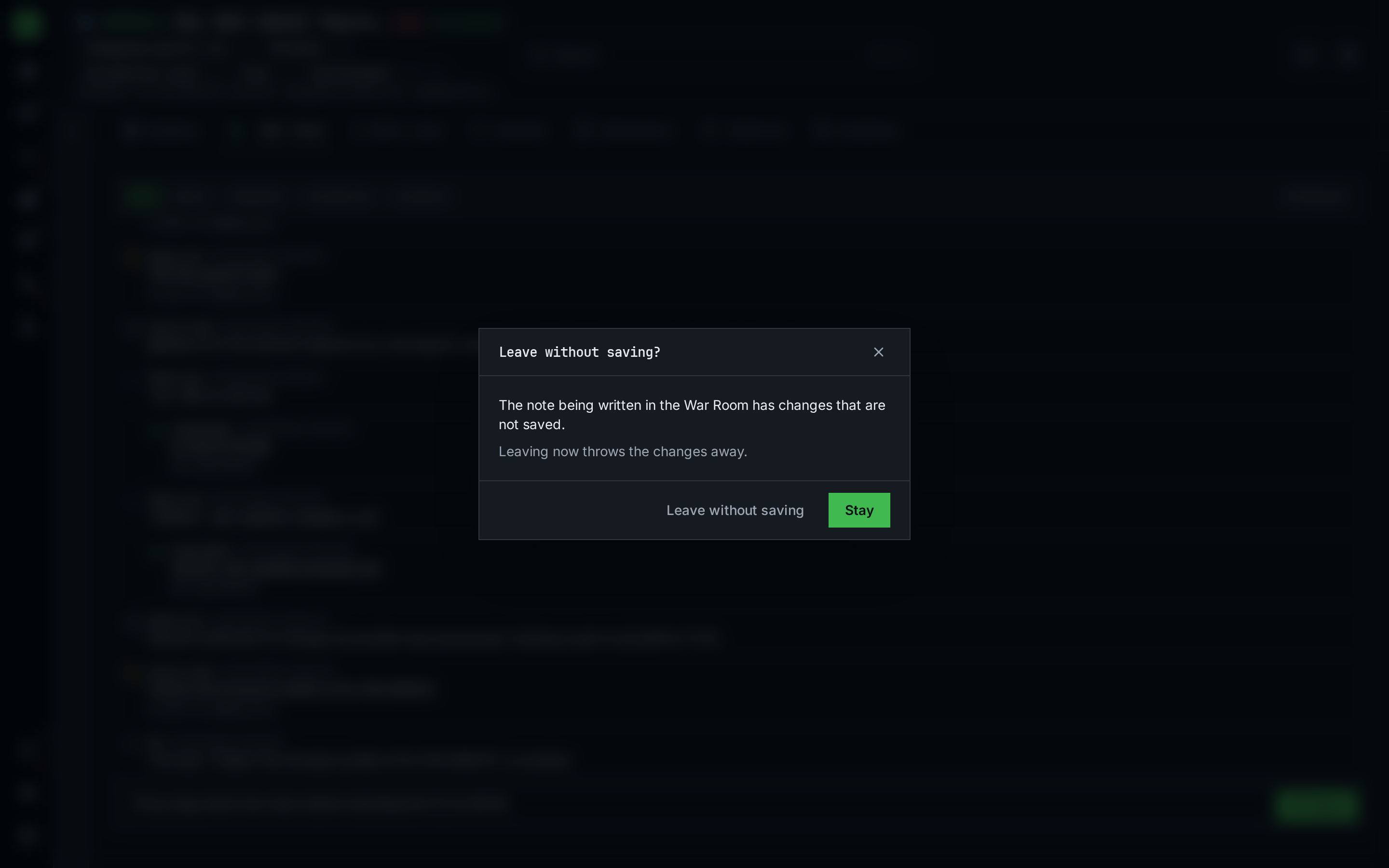
The dialog names what is not saved and offers:
- Stay (also Esc);
- Leave without saving;
- Save and leave, where what you edited can be saved from there. If saving fails you stay, and the reason is shown.
A form you opened and did not touch never asks. What saves itself (a playbook's canvas, a script's code, the report options, tags) is never asked about. Closing or reloading the browser tab with unsaved work makes the browser ask.
If a change cannot reach the server, a red bar says Changes not saved yet. Nik keeps trying; Retry now tries at once.