E-mail
Triage a reported e-mail: Mail Analysis gives a verdict with its reasons and shows the message without letting anything in it run.
Open an e-mail
- Drop the
.emlor Outlook.msganywhere in the window, or on Drop e-mails here in Evidence › Mail Analysis (100 MB at most). See Add evidence. - Choose the incident, or Start analysis for an e-mail with no incident.
- The message opens. In the list at the side, each message shows its subject, its score, the sender and the date.
A file of many e-mails (mbox, PST, Maildir) is a mailbox: its messages are imported from there.
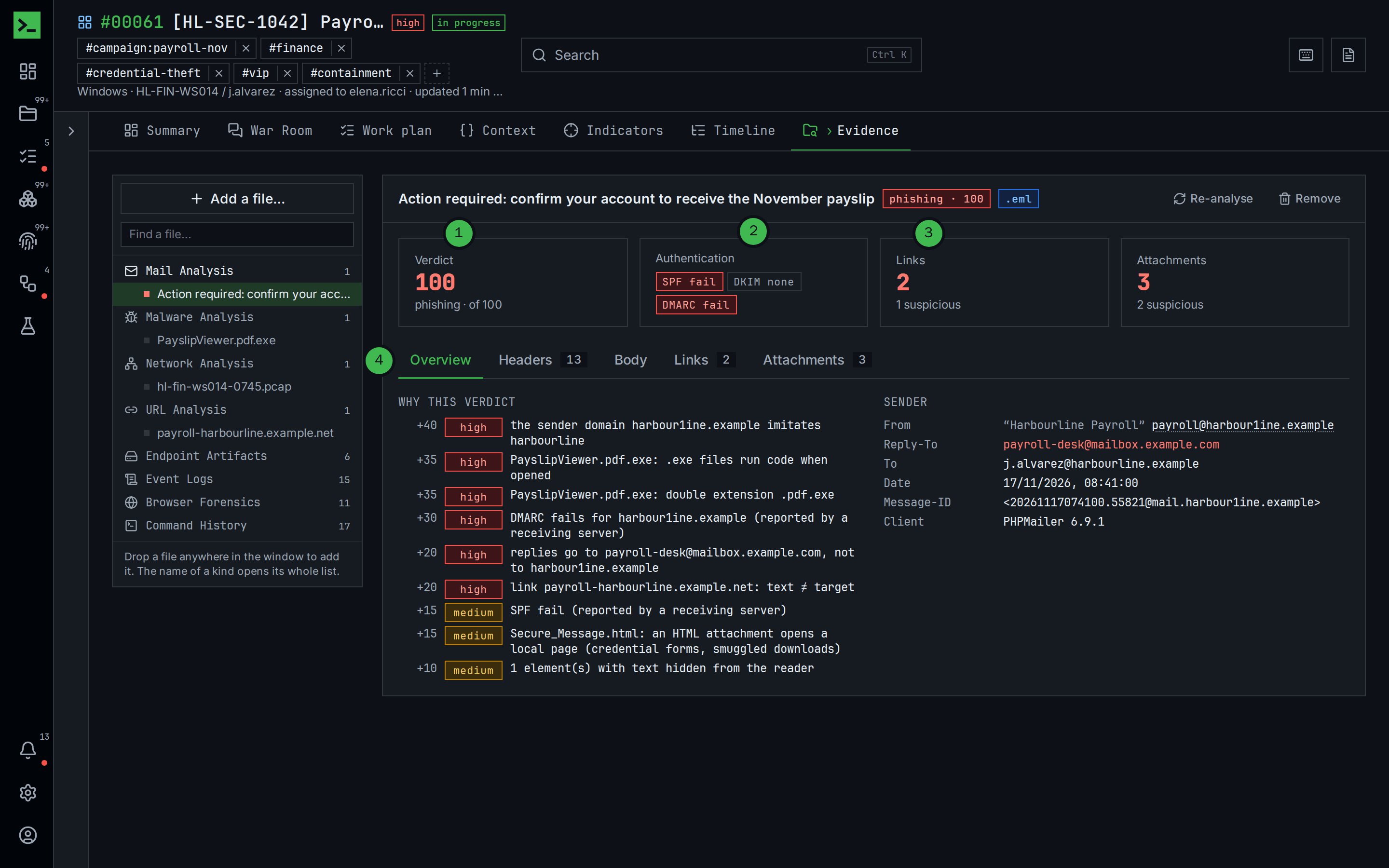
The head of the message shows 1 the verdict and the score, 2 Authentication (SPF, DKIM and DMARC), 3 Links and Attachments with how many are suspicious, and 4 the views: Overview, Headers, Body, Links, Attachments.
The verdict
Every finding weighs a fixed number of points; the score is capped at 100.
| Score | Verdict |
|---|---|
| 70 or more | phishing |
| 40 to 69 | suspicious |
| less than 40 | no strong signs |
Overview lists Why this verdict: each finding with its severity. For example a look-alike sender domain weighs 40, DMARC failing 30, a password-protected archive 35, urgency in the text 8.
Warning
The verdict is an aid to triage, not a proof. No strong signs means nothing stood out.
Overview also shows Sender (From, Reply-To, Return-Path, Sender, To, Cc, Date, Message-ID, Client, the sending and client IP) and Pressure in the text: urgency, payment, credential and secrecy phrases (English and Italian). A Reply-To or Return-Path on another domain is marked.
Headers and authentication
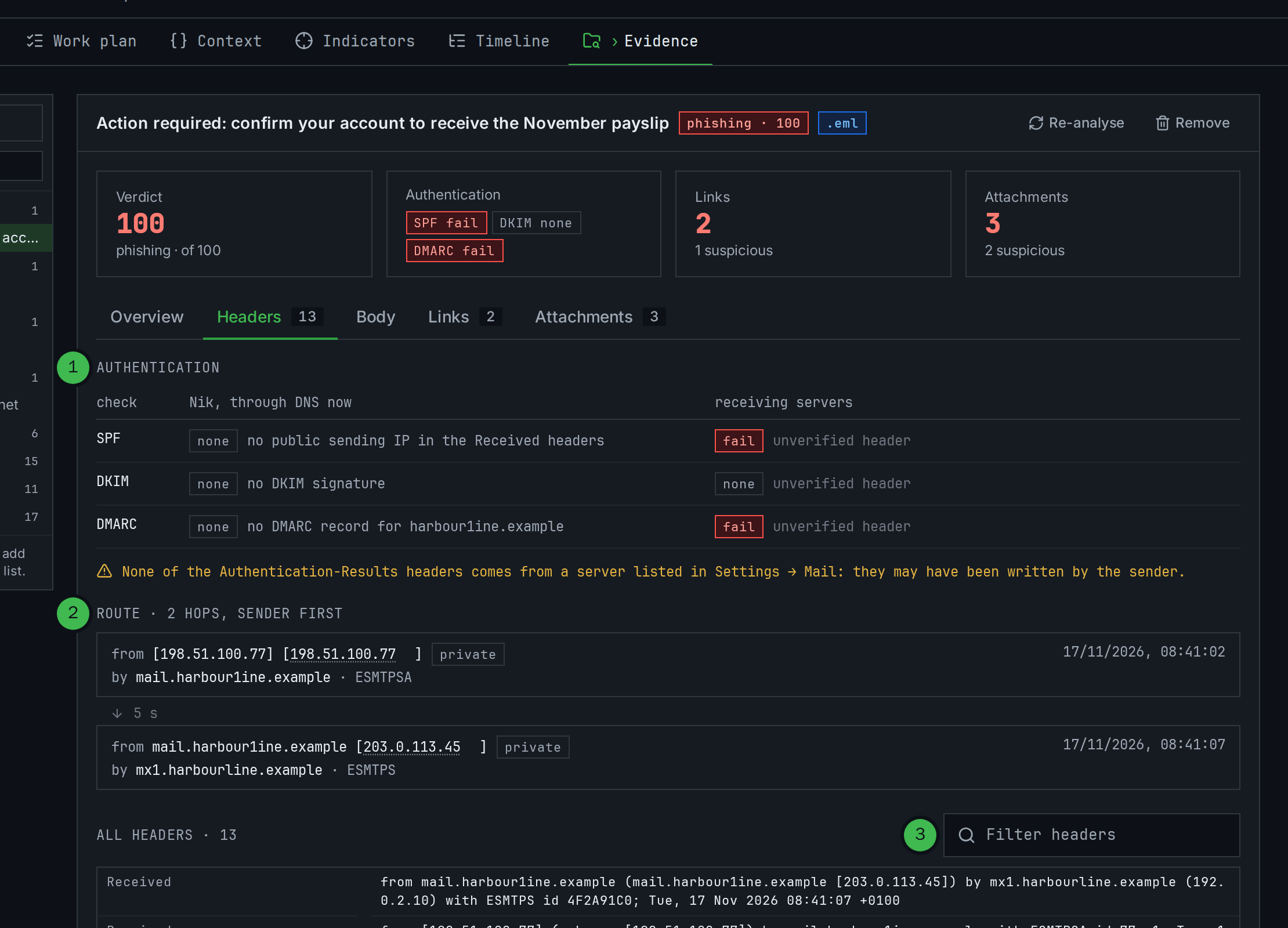
- 1 Authentication: one row per check, with two columns. Nik, through DNS now is what Nik finds itself; receiving servers is what your mail servers wrote in
Authentication-Results. - 2 Route: the
Receivedhops, sender first, with the delay of each and clocks that go back. The sending server is the first public address that is not one of your servers. - 3 All headers, with Filter headers.
How to read it:
- Nik checks SPF of the sending address, verifies DKIM signatures, and checks the DMARC policy and alignment. A DNS lookup that fails reads
temperror, never a pass. - Nik's checks say what the DNS says now: a DKIM key rotated since the message was sent fails. That is why the servers' answers are shown beside them.
- Only the
Authentication-Resultsof your mail servers and gateways are believed (marked your server); any other is an unverified header, since anyone can write one. Set them in the mail settings. - An Outlook
.msgkeeps no original body: its DKIM cannot be checked.
Body
The body is drawn in a sandboxed frame: no script runs, no link is followed, no form is submitted.
- HTML, Text and Source (the HTML part or the Whole message) are the three ways to read it.
- Remote images stay blocked. Load N images asks first; tracking pixels and images hidden in the styles are never loaded.
- Hidden text, which the recipient could not see, is revealed and outlined in red.
- Links lose their target: hover one to read where it goes.
Links

Each link of the message, with its target, how it was shown as, and its findings:
- Links wrapped by Safe Links, Proofpoint, Google, Facebook or Barracuda are unwrapped to their real target.
- A text that names another host than the target says reads as …, or text ≠ target as in the picture.
- Look-alikes of well-known brands and of your own domains are found, punycode and
rn→mtricks included. - A form of the message shows as form.
- open in isolated browser opens the target in the isolated browser.
Attachments
Each attachment shows its type (from its bytes, against its extension), its hashes and its findings: double extensions, right-to-left tricks, macros, archive listings (the password is looked for in the text and tried; nothing is extracted to disk), PDF actions, QR codes in images, calendar invitations.

| Button | What it does |
|---|---|
| Preview | The pages of a Word, Excel, PowerPoint, OpenDocument or RTF file, or an image, rendered on the server; you receive pictures only (the first 20 pages). |
| Open in isolated browser | An HTML attachment, opened in the isolated browser. |
| Show the bytes in hex (Hex) | The hex view of the file. |
| Show macro source | The VBA or XLM code of a document with macros. A file with none, like the PDF in the picture, does not offer it. |
| Send to Malware Analysis | Stores the attachment as a sample of the incident, for static analysis. |
| Download as a protected zip | In the right-click menu: the file in an encrypted zip. See Download safely. |
A button says not configured when the server has no document viewer or no isolated browser (DOCVIEW_URL, BROWSER_URL).
The isolated browser window
The page runs in a browser on the server. What you see is a picture of it; your clicks, typing and scrolling are replayed there. Nothing of the page reaches your workstation.
- Press Open in isolated browser (an attachment) or open in isolated browser (a link).
- Choose the network:
- No network (recommended): only the attachment loads; every request it makes is refused. A link opened this way shows only that it was blocked.
- Allow internet for this session: the page and its redirects load from the internet through the server, never from private addresses. The sites see the company's address. Recorded in the audit log.
- Press Open.
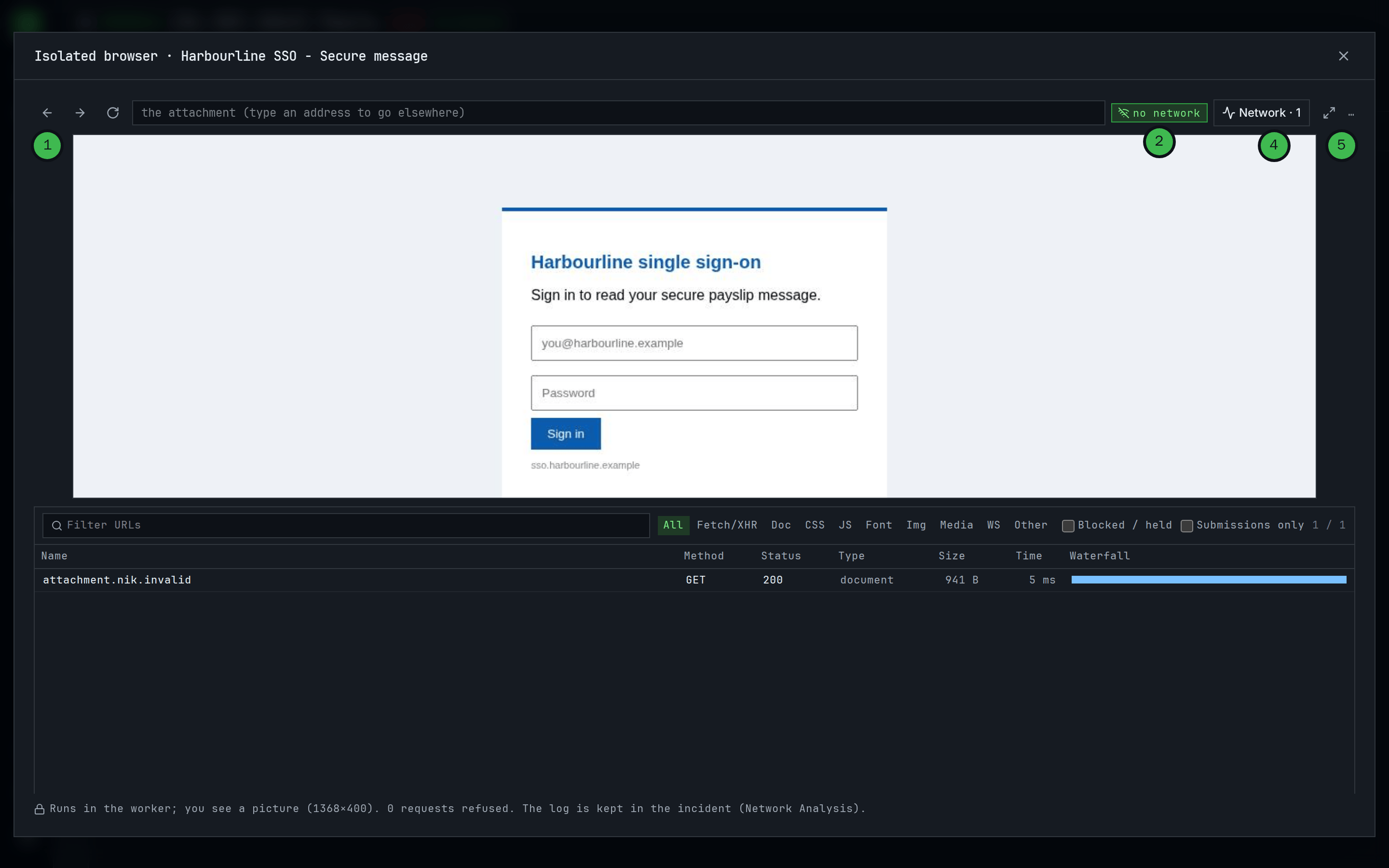
- 1 Back, Forward, Reload and the Address bar.
- 2 network or no network: what this session may reach.
- Submissions held: what the page submits (a form, a POST) is recorded, not sent. Press it and Send submissions to let them through for this session (audited).
- 4 Network · N lists every request, like the browser's developer tools.
- 5 Full screen; Esc leaves it.
- A window the page opens (a sign-in pop-up, a link in a new tab) is a tab above the page; the × closes it.
Warning
Live phishing pages may log the visit and change what they serve. Never type real credentials: use invented ones.
Opened from an incident, the requests of the session are kept. When the window closes they become a capture in Network Analysis.
A session closes after 5 minutes without an action, 30 minutes at most.
What the mail settings change
Platform settings › Analysis › Mail analysis (administrators) holds two lists:
| Setting | What it changes |
|---|---|
| Your organisation's domains | A message that claims to come from them but fails authentication, or a domain that imitates them, is flagged. A domain covers its subdomains. The data guard treats a name under them as internal. |
| Your mail servers and gateways | Only their Authentication-Results are believed, and their hops are skipped when Nik looks for the sending server. |
Both are lists: the section shows which list each reads, and Open in Lists edits it.
Note
Changes apply to messages analysed from then on. Press Re-analyse on a message to apply them to it.
Act on a message
| Action | Where |
|---|---|
| Re-analyse | The head of the message: analyses the stored message again, DNS checks included. |
| Remove | The head of the message: takes it out of this incident; it stays as an artifact. |
| Open as an artifact | Right-click the message in the list. |
| Flag | Right-click the message in the list: it joins the incident's flagged events, and its row shows a flag. See Summary, timeline and War Room. |
| Remove from the incident | Right-click the message in the list. |
The message's indicators (sender address and domain, sending IP, link targets and hosts, attachment hashes, QR and invitation links) go to the incident's Indicators. The timeline shows the message at the time it was sent, high when it is phishing. The report has an E-mails section.
Related
- Add evidence
- Malware for the attachments
- Links for a link visited on its own
- Lists and the allowlist
- How mail analysis works