Network capture
Read a packet capture in the browser with Wireshark's own engine: packets, filters, streams, the files they carried and a summary.
Add a capture
- Drop a
.pcapor.pcapng(gzip too) anywhere in the window, or on Drop captures here in Evidence › Network Analysis. The largest is 500 MB (PCAP_MAX_MB). - Choose the incident, or Start analysis for a capture with no incident. A capture belongs to one incident at most.
- The capture shows analysing… while Wireshark reads it, then ready.
A capture stays stored, not analysed when the server has no packet capture worker (PCAP_URL). Nothing is ever captured on the server: Nik only reads files.
The head of the capture holds its state and badges, Add TLS keys, Capture (download), Re-analyse and Remove, and the views: Packets, Objects, Summary (and Requests for a session of the isolated browser).
Packets
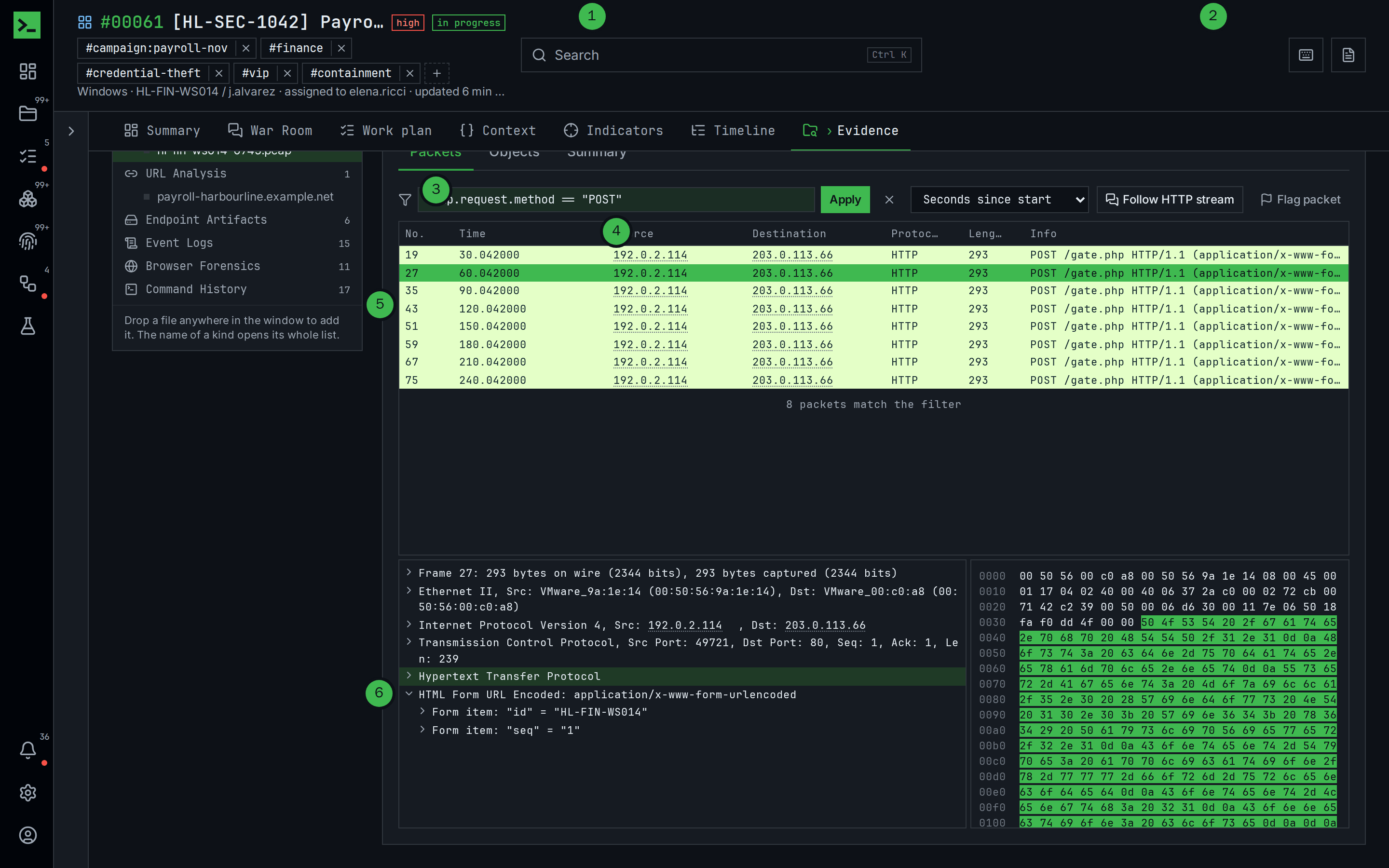
- 3 Display filter: type a filter in Wireshark's syntax (
http.request.method == "POST") and press Enter. The × clears it. - 5 The packet list, with Wireshark's colours. Click a column header 4 to sort the packets loaded so far; again for the reverse; a third time for the capture's order.
- 6 The protocol tree and the bytes of the selected packet. Selecting a field highlights its bytes.
- Time format: Seconds since start, Date and time (UTC) or Since previous packet.
Right-click a field of the tree for Apply as filter, Copy the field and Copy the filter.
Public addresses, host names, URLs and hashes in the list and the tree are indicators: click one for its window, right-click for its menu. Private addresses stay plain text.
Follow a stream
- Select a TCP or UDP packet.
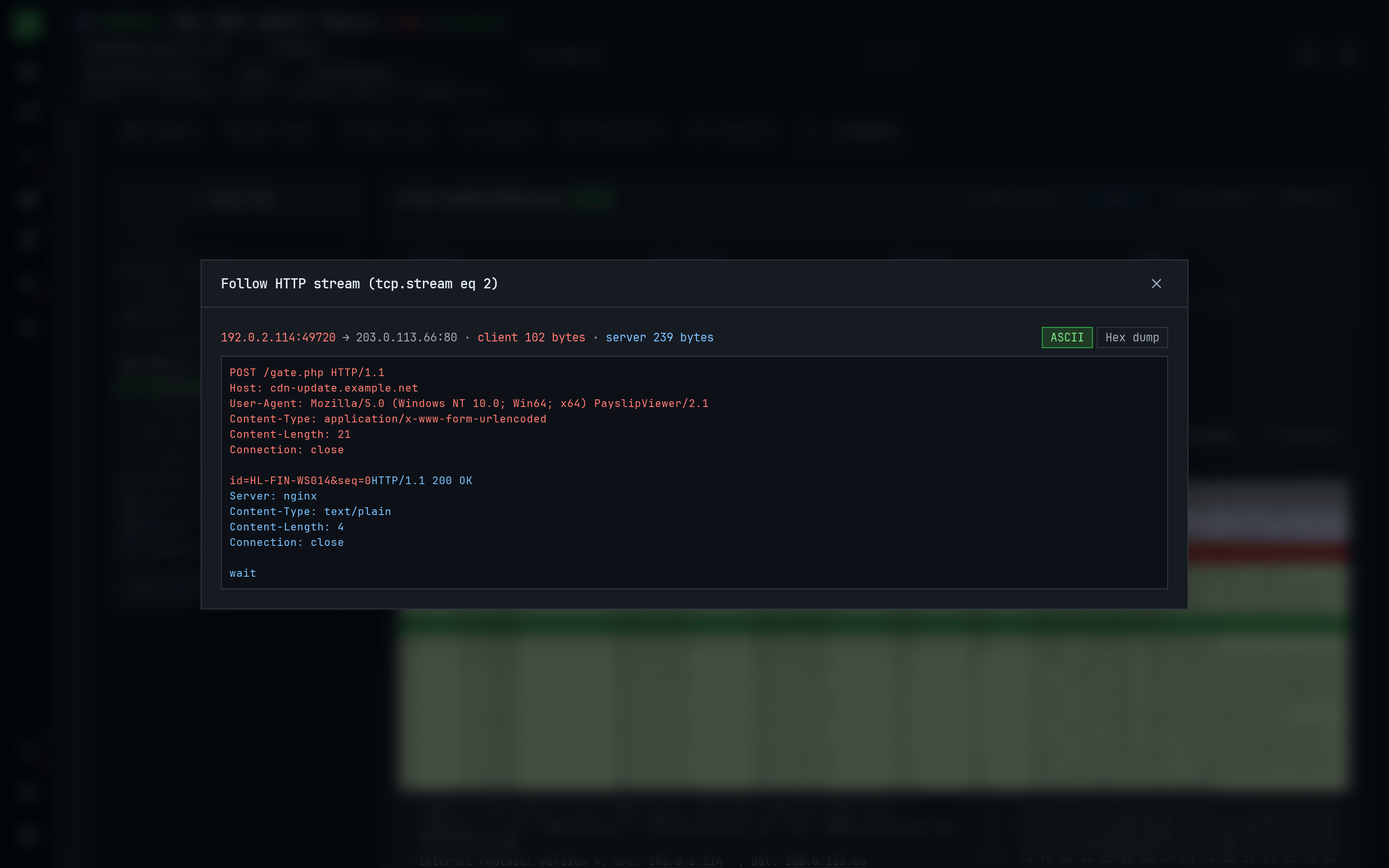
- Press Follow TCP stream (or HTTP, TLS, UDP: the button names what the packet carries).
- The conversation opens, reassembled. Choose ASCII or Hex dump.
Flag a packet
Select a packet and press Flag packet. It joins the incident's flagged events and its timeline. Flagged shows on a packet already flagged.
Objects
The files carried by HTTP, SMB, FTP, TFTP, IMF and DICOM, as Wireshark's Export Objects finds them, each with its SHA-256.
| Action | What it does |
|---|---|
| Send to Malware Analysis | Stores the object as a sample of the incident. See Malware. |
| Download as a protected zip | Right-click: the object in an encrypted zip. See Download safely. |
| Copy the name, Copy the host, Copy the SHA-256 | Right-click. |
Decrypt TLS
- Ask for the key log of the client: the file
SSLKEYLOGFILEwrote (NSS format,.log,.txtor.keys). - On the capture, press Add TLS keys and choose the file.
- Wireshark reads the capture again with the keys: HTTPS shows in clear, and the badge TLS keys appears.
Replace TLS keys changes the file; Remove keys takes it away.
Note
The key log is stored encrypted, like the credentials of connectors, and given to the worker only while the capture is open.
Summary
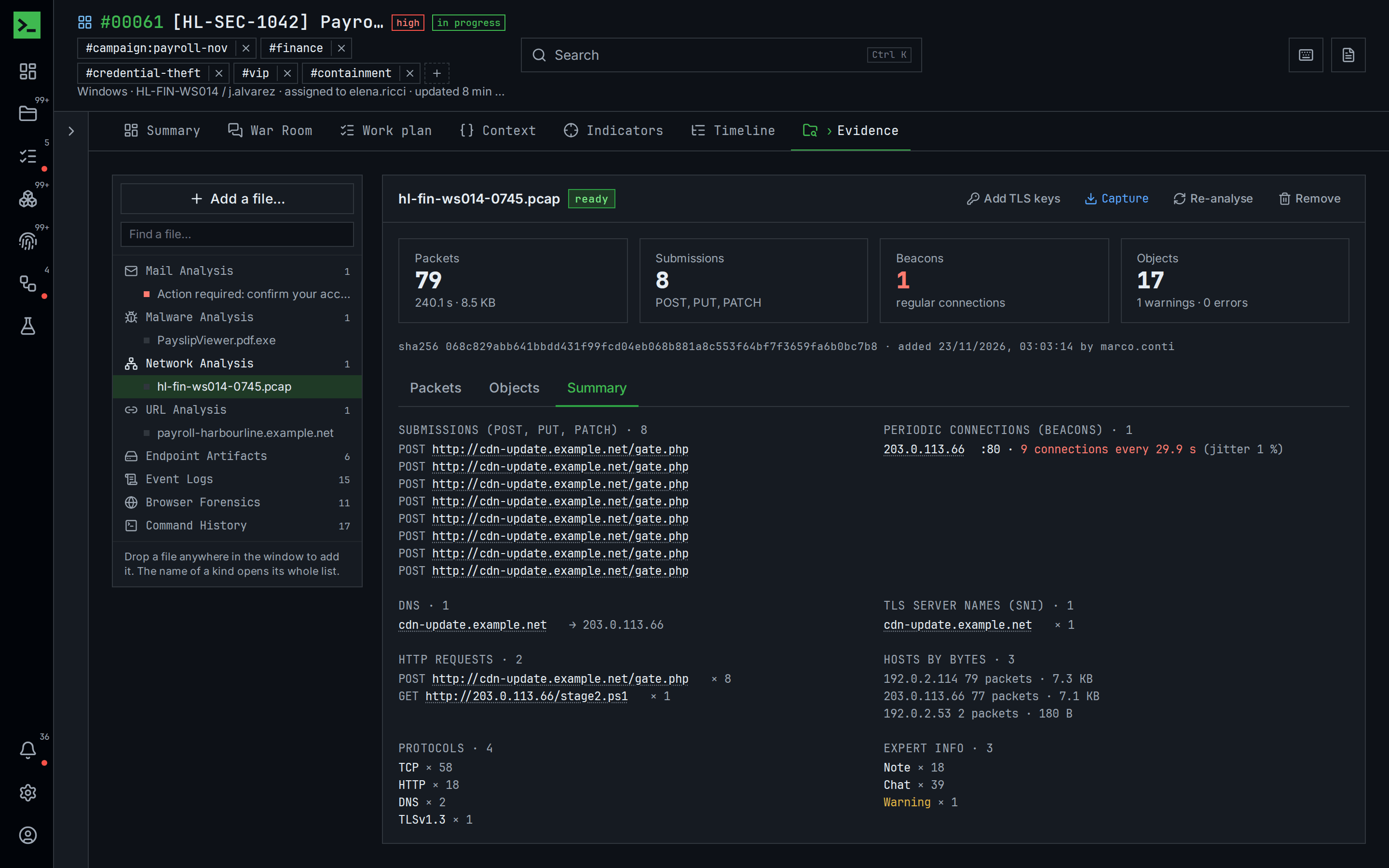
| Panel | What it lists |
|---|---|
| Submissions (POST, PUT, PATCH) | Requests that send data. |
| Periodic connections (beacons) | Six or more connections to the same address and port, at least 5 s apart, at intervals within 15 % of each other: a sign of malware calling home. |
| DNS | The names asked and their answers. |
| TLS server names (SNI) | The hosts asked for over TLS. |
| HTTP requests | Method, host, path. |
| Hosts by bytes | Who talked the most. |
| Protocols | What the capture holds. |
| Expert Info | Wireshark's warnings and errors, counted. |
The summary feeds the incident's Indicators (Network · <file>), its timeline and the report's Network section.
Isolated browser sessions
A session of the isolated browser opened from an incident, or a URL scan, is a capture too. It carries the badge isolated browser · reconstructed.
- Requests lists every request like the browser's developer tools: Headers, Payload, Preview, Response, Timing, Messages (WebSocket). Refused requests and held submissions are listed too.
- When the window closes, the log is rebuilt as a pcapng, so display filters, Follow Stream and Objects work on it. pcapng downloads it, HAR gives it as HAR 1.2.
- The preview of a captured page is a picture: its links, forms and redirects are disarmed.
Act on a capture
| Action | What it does |
|---|---|
| Re-analyse | Reads the stored capture again. |
| Capture | Downloads the file. |
| Remove | Takes the capture out of the incident; it stays as an artifact. |
| Open as an artifact | Right-click the capture in the list. |
| Hide the list | The button in the corner of the list of captures; it stays hidden the next time. |
Related
- Add evidence
- Links, whose visits become captures
- Malware, for the objects
- Indicators of an incident
- How network analysis works