Reports and exports
Hand over an incident as a PDF or HTML report, move incidents and evidence to another Nik, and export content as one file.
The incident report
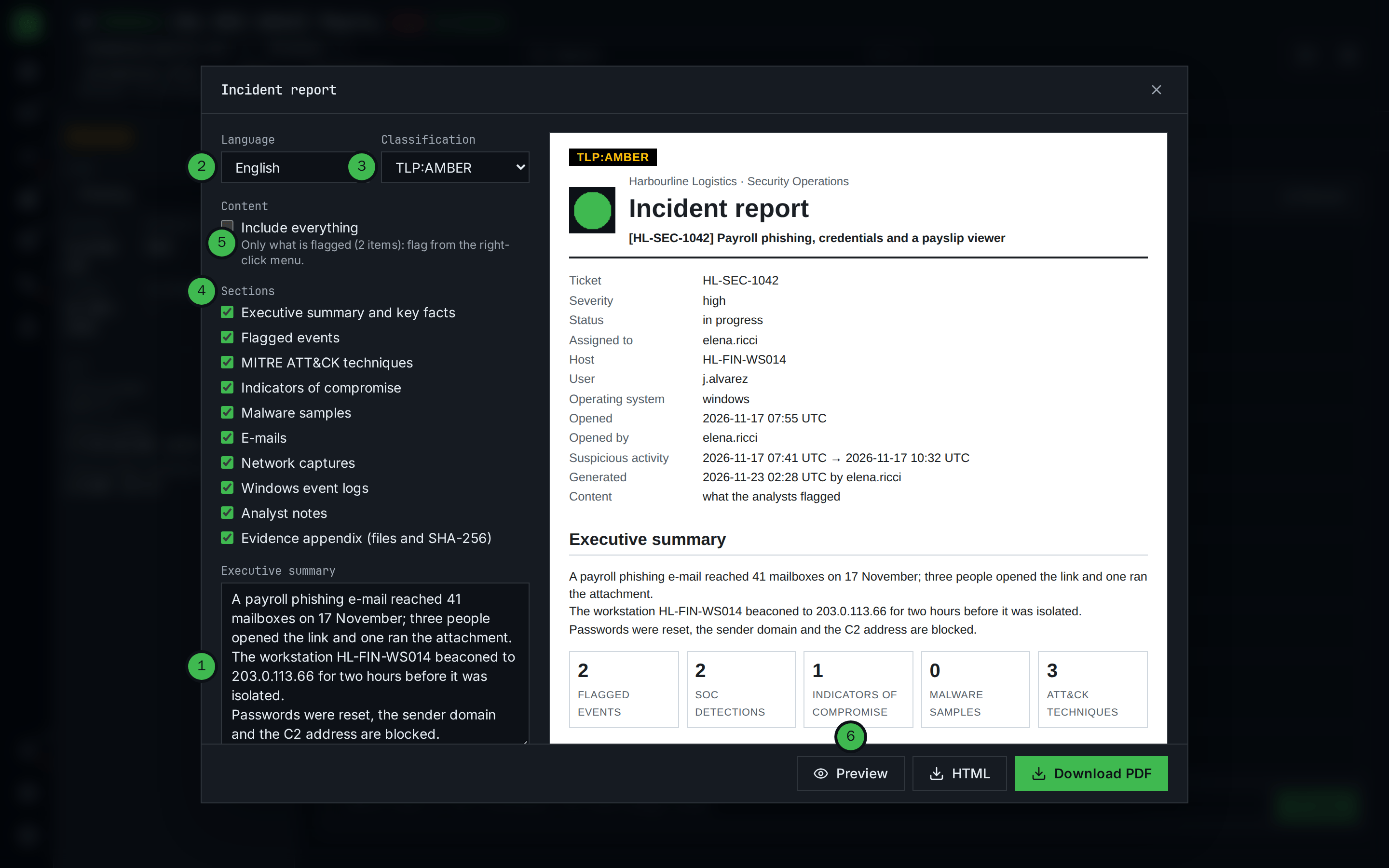
- Open the incident and click Incident report in the header. From the list: right-click an incident › Incident report….
- Write the Executive summary 1: what happened, the impact, what was done and what should happen next. It is saved with the incident.
- Pick the Language 2 (English or Italiano) and the Classification 3 (TLP:CLEAR to TLP:RED; TLP:AMBER at first).
- Tick or untick the Sections 4.
- Choose the Content 5: what is flagged, or Include everything.
- Click Preview 6 to see the report as the server builds it.
- Click Download PDF, or HTML.
The options are kept per incident and saved as you change them.
What goes in
By default the report holds what you flagged, so it stays about the incident and not about everything imported:
| Section | Holds |
|---|---|
| Executive summary and key facts | Your summary, and the details of the incident: status, owner, severity… |
| Flagged events | The flagged events, in order, with their comments |
| MITRE ATT&CK techniques | Those of the flagged samples and of the detections on flagged events |
| Indicators of compromise | The indicators flagged by hand |
| Malware samples, E-mails, Network captures | Those flagged, or holding something flagged (an indicator, a function, a packet) |
| Windows event logs | The logs that hold a flagged event |
| Analyst notes | Every note |
| Evidence appendix (files and SHA-256) | The SHA-256 of the imported files that hold something flagged |
Tick Include everything for the full inventory instead: every indicator, sample, e-mail, capture and imported file of the incident. The choice is kept per incident.
Nothing in the report?
Flag what matters first: right-click a row › Flag the …, or F. See Flags and comments.
Your organisation's name and logo
An administrator sets them once under Platform settings › Analysis › Report header. The logo must be 256 KB or smaller. They are printed at the top of every report.
A dashboard as a PDF
A dashboard has its own Report button: see Dashboards and My tasks.
Export and import incidents
Export one:
- Right-click the incident in the list › Export (JSON).
The file holds everything the incident holds, to archive it or hand it to another Nik. To export many, select them and choose Export (JSON) in Actions… (25 at a time): see Act on many at once.
Import one:
- In Incidents, click Import incident.
- Choose the
.jsonfile.
Note
An imported incident starts Unclassified: its type and its fields are those of the Nik it came from. Set its type afterwards.
Export and import artifacts
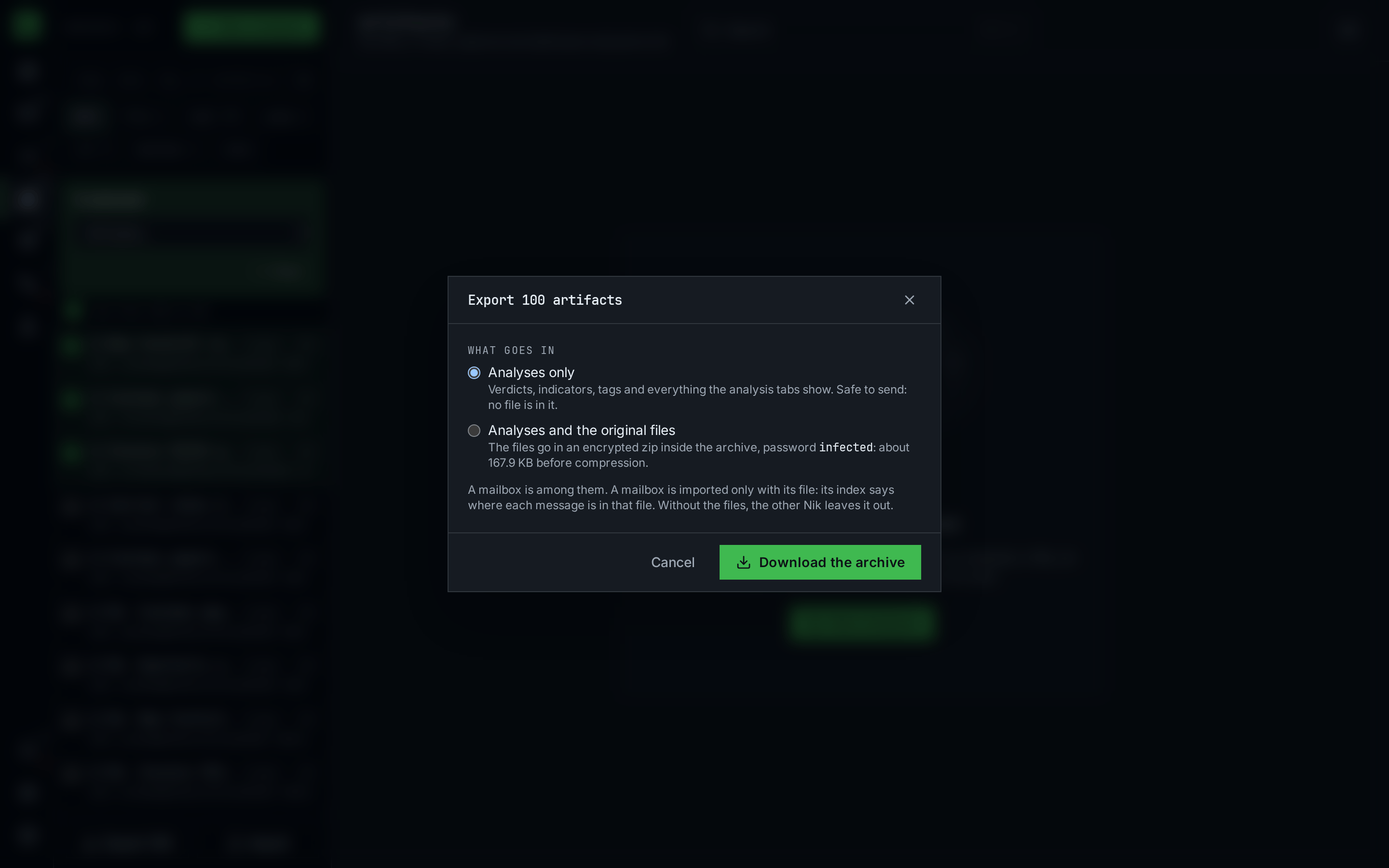
- Export from the artifacts panel (Export: what the filter lists, 500 at most), from an artifact's page, or from its right-click menu › Export….
- Choose what goes in:
- Analyses only (the default): verdicts, indicators, tags and everything the analysis pages show. Safe to send: no file is in it.
- Analyses and the original files: the files go in an encrypted zip inside the archive, password
infected. The dialog says how large they are.
- Click Download the archive.
A capture and a mailbox travel only with their file. Without the files, the other Nik leaves them out.
Import (administrators), beside Export in the artifacts panel, adds the artifacts this server does not have. A file is stored only when its SHA-256 matches its artifact, and nothing is run.
To export many files in one archive, select them and use Download together…: see Act on many at once.
Export and import indicators
From the Indicators page or the Indicators tab of an incident, Export… writes the chosen indicators as:
| Format | For |
|---|---|
| CSV | A spreadsheet, a SIEM lookup |
| JSON | Scripts, import in Nik |
| STIX 2.1 | A TIP, OpenCTI |
| MISP | An event with attributes |
| Text | One value per line |
To import, drop the file anywhere in the window. See The Indicators page.
Export content as one file
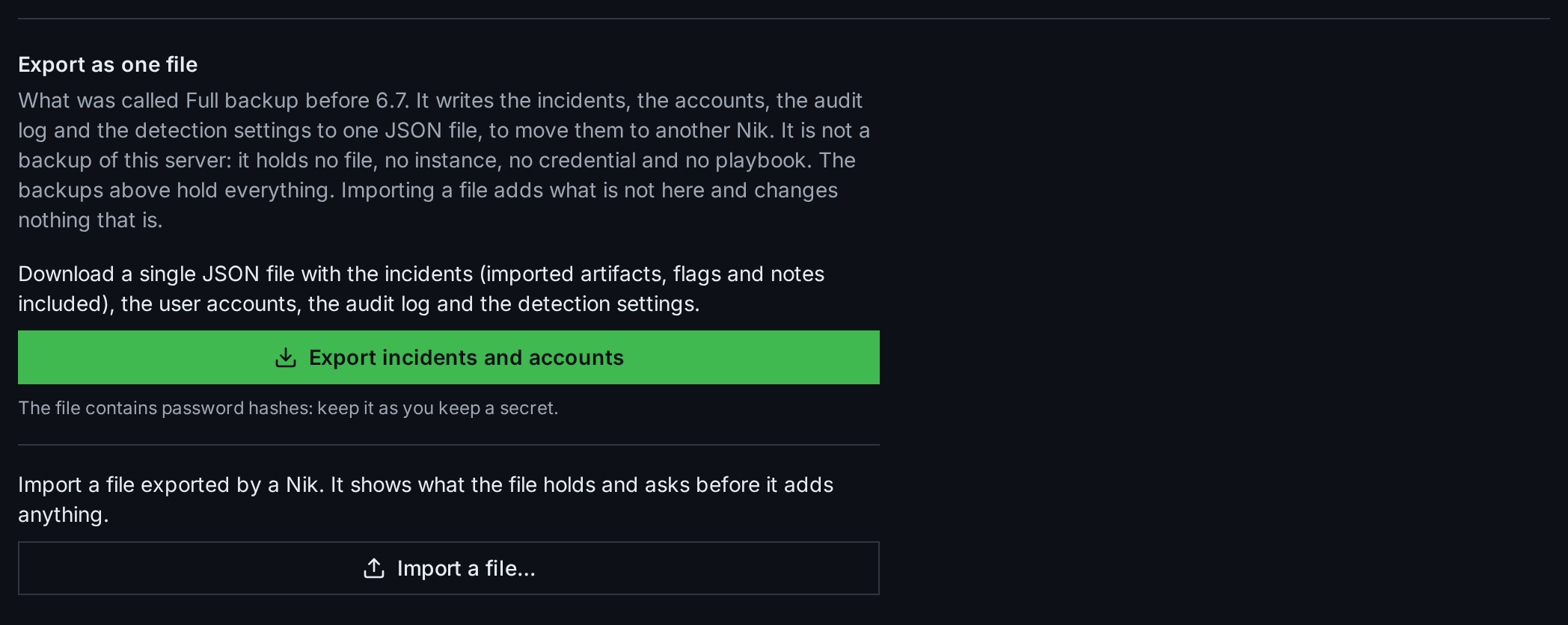
You need
The Admin role.
Platform settings › System › Backup, at its foot: Export as one file.
- Export incidents and accounts writes one JSON file with the incidents (imported artifacts, flags and notes included), the accounts (with their password hashes), the audit log and the detection settings. Keep it as you keep a secret.
- Import a file… shows what the file holds (incidents, users, audit entries) and asks. Add to this server adds what is not here. Nothing that is here is changed or deleted. An account that arrives signs in with the password it had.
This is not a backup
The file holds no file of the store (samples, e-mails, captures, mailboxes), no indicators of the Indicators page, no playbook, script, connector, instance or credential. It moves content between two servers. The server's own backups are in Backups and restore. Playbooks and connectors travel as Content packs.