Add evidence
Bring a file, a mailbox, an address or a piece of text into Nik, in an incident or on its own.
Nik never runs what you give it. Files are stored read-only on the server and analysed statically; an address is visited by the isolated browser, which types, clicks and submits nothing.
Four ways in
| How | Where | What happens |
|---|---|---|
| Drop a file anywhere in the window | Any screen | Nik reads the file's name and first bytes, proposes where it goes, and asks. |
| Add a file… | The top of the Evidence tab | The same, for who cannot drag a file. |
| New analysis | The Artifacts panel, the incident list | A file or an address, analysed with no incident. See Analyse without an incident. |
| Ctrl+V or drag selected text | Any screen, outside a text field | Nik offers what to do with an address or an indicator. See Paste or drag text. |
You need
The analyst role (permission write) to add evidence. A viewer sees everything, adds nothing. See Accounts, roles and sign-in.
Drop a file
- Drop the file anywhere in the window.
- The Add a file dialog opens. Its first line names the file and what Nik recognised 1 (for example Windows executable (PE) → Malware Analysis).
- If Nik has seen this file before, it says This file was already analysed, with who added it and in which incidents. Open the existing analysis opens it instead 2.
- Under Where, choose 3:
- Start analysis — on its own, no incident (link it later). Only for e-mails, suspicious files and captures.
- Add to the open incident — the incident you are on.
- Start a new incident with this file — the dialog asks the name and the fields of the new incident.
- Check Tab 4, and the source when the tab needs one (Browser and File, Shell, Category and Source, or Format).
- Press Start analysis, Import, or Create incident and import.
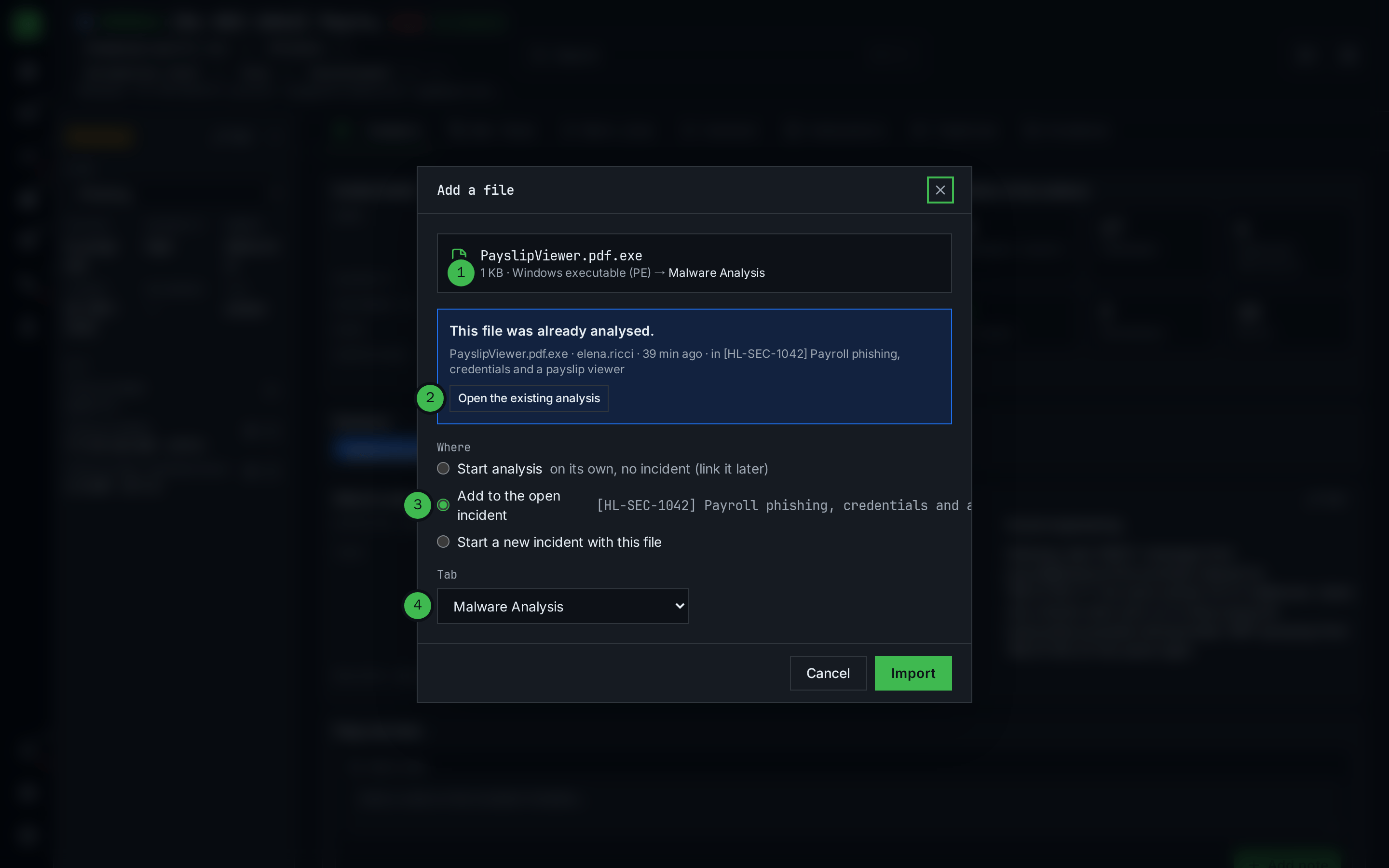
A file Nik cannot place says not recognised: choose where it goes: pick the Tab yourself.
What Nik recognises
| The file | Goes to |
|---|---|
.eml, a message saved without extension, Outlook .msg |
Mail Analysis |
| An executable (PE, ELF, Mach-O), a PDF, an Office document, a script, an archive | Malware Analysis |
.pcap, .pcapng (gzip too) |
Network Analysis |
Windows .evtx, the nik-eventlogs.json of the collection script |
Event Logs |
Chrome History, Shortcuts, Bookmarks; Firefox places.sqlite; Safari History.db, Downloads.plist, Bookmarks.plist |
Browser Forensics |
.bash_history, .zsh_history, fish_history, ConsoleHost_history.txt |
Command History |
| An mbox, an Outlook PST, an archive of a Maildir | A mailbox, stored at once, no dialog |
| A list of indicators (text, CSV, STIX 2.1, MISP, Nik's export) | The Add indicators dialog of the Indicators page |
Tip
A file that holds indicators but is evidence (a CSV export of a tool, for example) opens Add indicators first. Press Not indicators? Place the file in a tab to drop it as evidence instead.
Where a file is read
- In your browser: browser databases, plists, shell histories, CSV and JSON exports. The raw file never leaves your machine; only the entries reach the server.
- On the server: e-mails, mailboxes, suspicious files, packet captures,
.evtxlogs. They are stored, then analysed without ever being run.
Size limits
| Evidence | Largest file | Set by |
|---|---|---|
| Suspicious file, e-mail | 100 MB | SAMPLE_MAX_MB |
| Packet capture | 500 MB | PCAP_MAX_MB |
Host evidence sent to the server (.evtx, tool output) |
500 MB | ARTIFACT_MAX_MB |
| Mailbox (mbox, Maildir archive) | 2048 MB | MAILBOX_MAX_MB |
| Outlook PST | 4096 MB | PST_MAX_MB |
| A file of indicators | 5 MB | fixed |
An administrator changes them: see Environment variables.
The Evidence tab
The Evidence tab of an incident lists everything it holds, kind by kind.
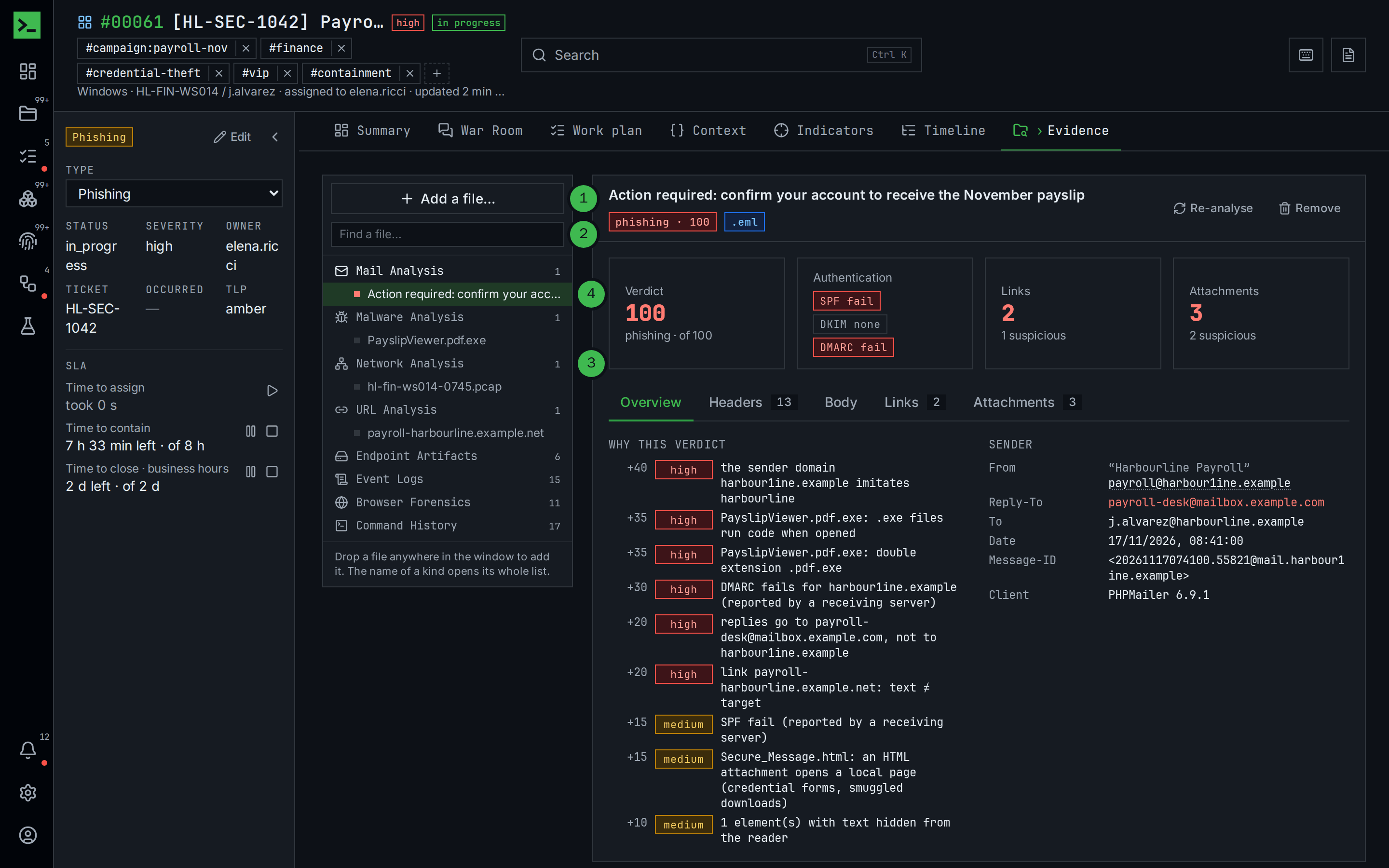
- 1 Add a file… chooses a file from the disk.
- 2 Find a file… narrows the list by name, sender or kind.
- 3 The name of a kind (Mail Analysis, Malware Analysis, Network Analysis, URL Analysis, Endpoint Artifacts, Event Logs, Browser Forensics, Command History) opens the whole kind: its own list, where files are added, compared and removed. The number beside it counts the files or records.
- 4 A file opens alone, in the page of its kind. A small square in front of it shows its verdict: red for high or phishing, amber for medium or suspicious.
Right-click a file for Open, Open in the list of …, Copy the name and Copy the detail. Drag the edge of the list to resize it.
Remove in the page of a file takes it out of this incident. The file stays as an artifact.
Note
Endpoint Artifacts, Event Logs, Browser Forensics and Command History need the incident's operating system. See Host evidence.
Paste or drag text
- Press Ctrl+V outside a text field, or drag selected text onto the app.
- When Nik recognises an address or an indicator, a panel opens at the bottom right: RECOGNISED, its kind, and the text as you gave it.
- Choose:
| Button | What it does | Offered for |
|---|---|---|
| Analyse URL / Analyse as URL | The isolated browser visits it (a domain as https://<domain>/) |
An address, a domain |
| Open the analysis | Opens what Nik already analysed (Already analysed: …) | The SHA-256 of a file or an e-mail Nik holds |
| Search in Nik | Opens the search on the value | Every kind |
| Where seen | Opens the indicator's window: its reputation and the incidents that hold it | Every kind |
| Add to IoCs | Opens Add indicators with the value | Every kind |
Nothing is opened until you choose. Esc or the × closes the panel.
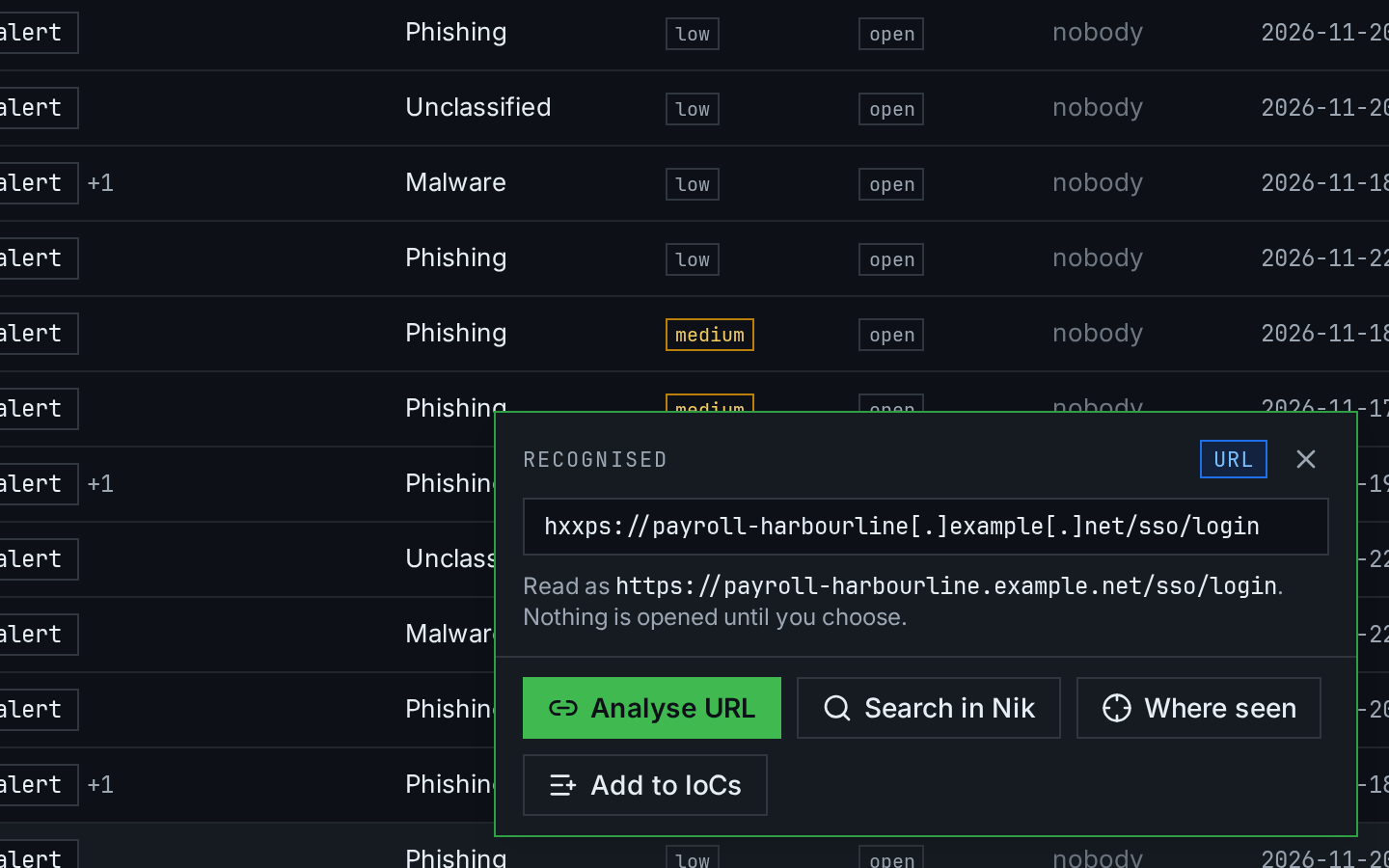
- Defanged text is read as meant:
hxxps://payroll-harbourline[.]example[.]net/sso/login,203.0.113[.]66,payroll[at]payroll-harbourline.example.net. The panel says Read as …. - A file on the clipboard is handled like a dropped file.
- Several values open Add indicators with them.
- Sentences and longer text are ignored.
Analyse without an incident
Not everything starts as a case. A reported e-mail, a suspicious file, a capture or a link can be analysed on its own. The result is an artifact: the same analysis as in an incident, seen by the whole team.
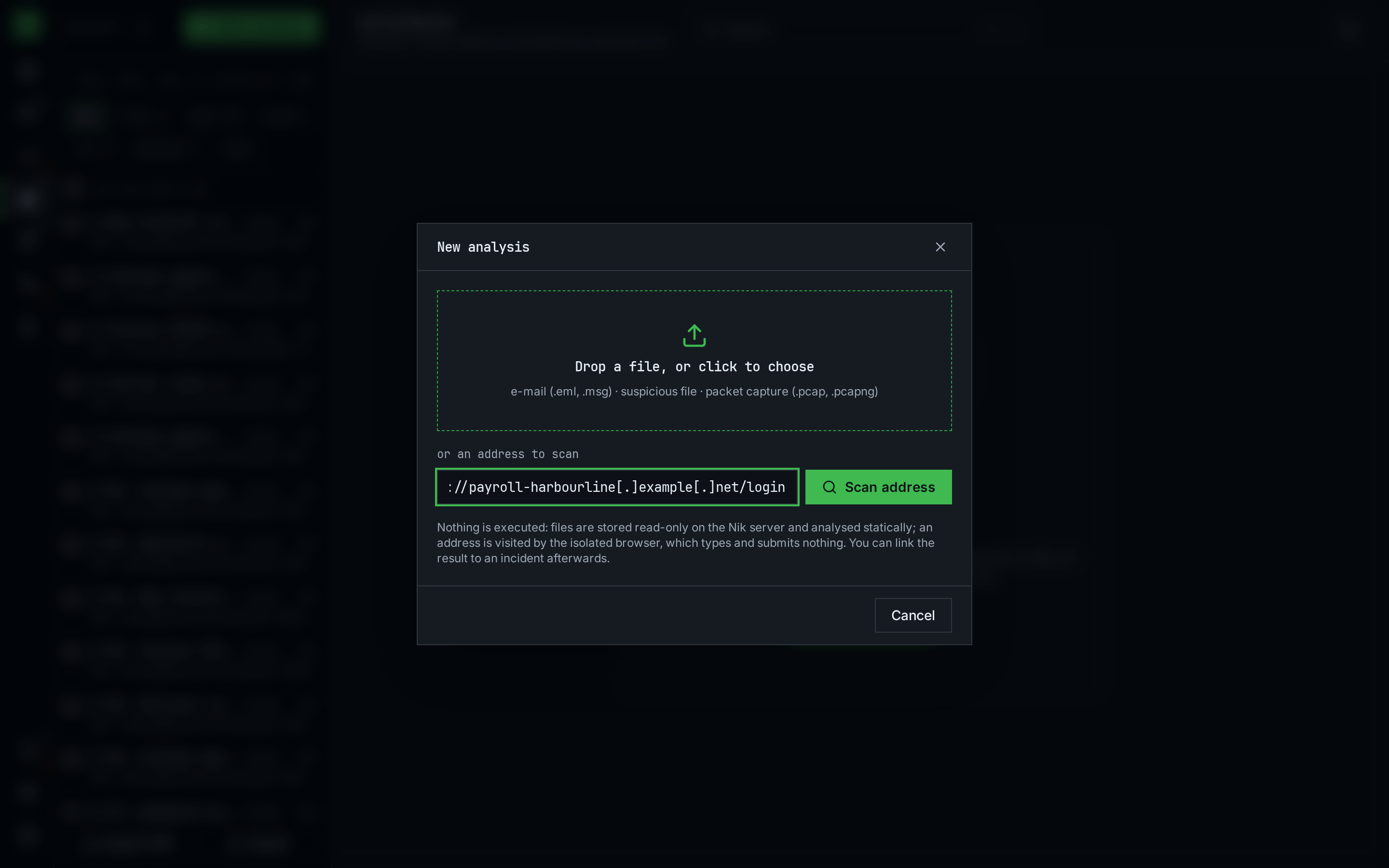
- Press New analysis in the Artifacts panel.
- Drop a file on Drop a file, or click to choose, or type an address under or an address to scan and press Scan address.
- A file goes on to the Add a file dialog, with Start analysis chosen. An address opens as a URL artifact while it is scanned.
Host evidence (browser and shell history, endpoint artifacts, event logs) always belongs to an incident.
The Artifacts page
The Artifacts entry of the rail opens /artifacts: the list of every artifact at the side, nothing open until you choose one.
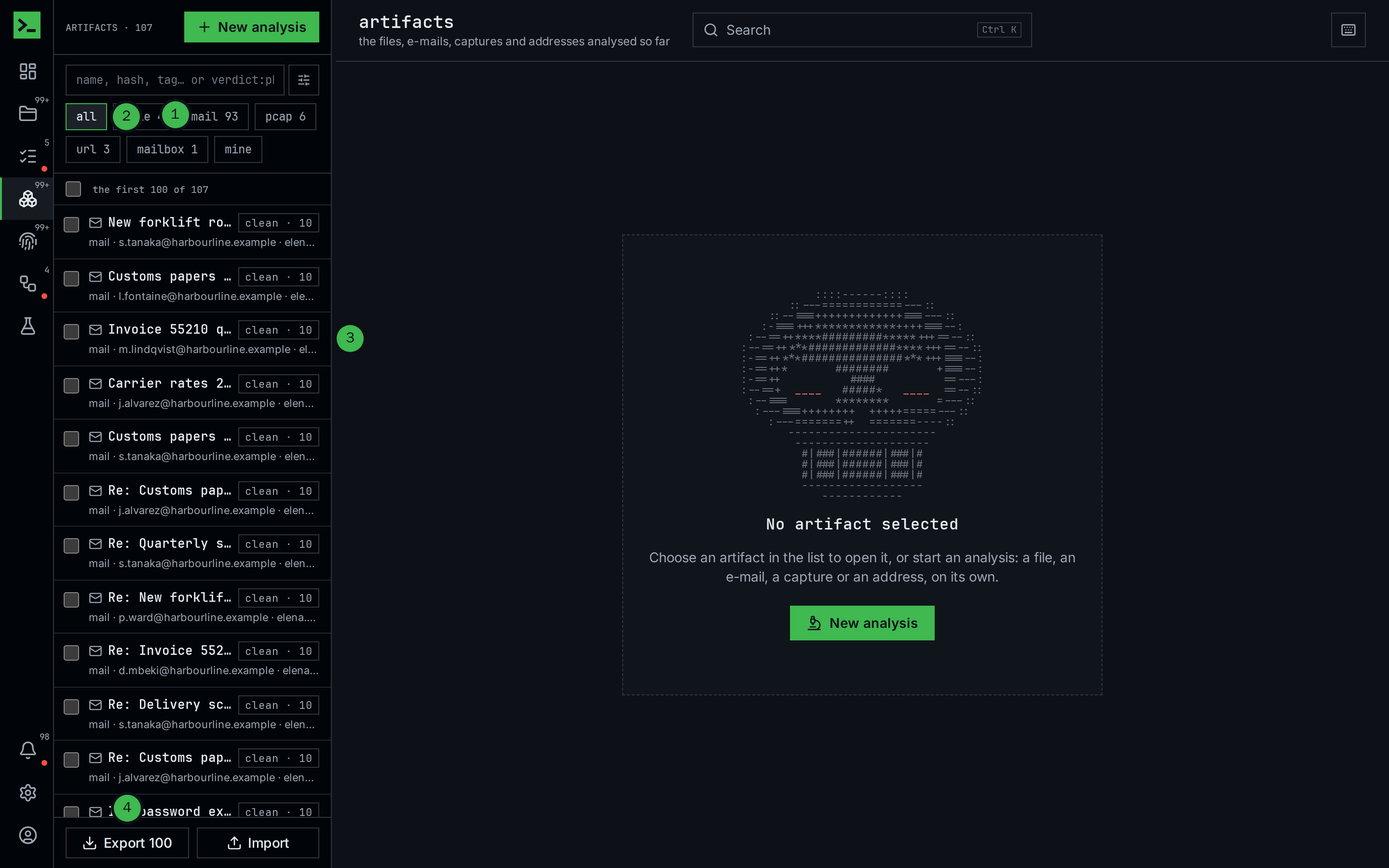
- 1 Filter artifacts takes text (a name, a hash, a tag) or the query language:
verdict:phishing. - 2 The chips narrow by kind: file, mail, pcap, url, mailbox, and mine for those you added.
- 3 Each row shows the name, the verdict badge, who added it and when, and its tags.
- 4 Export at the foot exports the artifacts listed (500 at most). Import (administrators) brings in an archive from another Nik.
Tick rows to act on many at once: tags, Analyse again, link or take out of an incident, expiry, Download together…, delete. See Act on many at once.
Right-click a row for Open, Export…, Analyse as an e-mail or Analyse as a capture (when the name fits), and Filter by #tag.
The page of an artifact
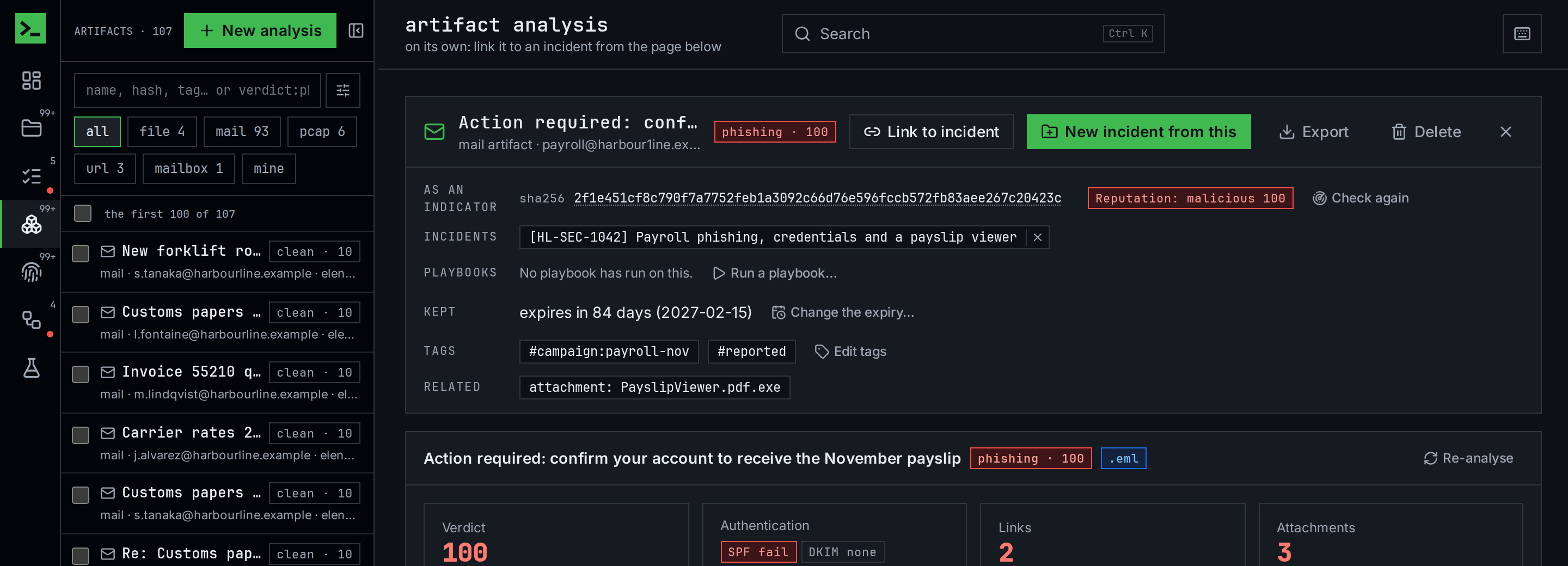
| Button or row | What it does |
|---|---|
| Link to incident | Puts the artifact in that incident's Evidence, indicators, timeline and report. A file or an e-mail can be in several incidents; a capture in one. |
| New incident from this | Creates an incident and links the artifact in one step. |
| Analyse as an e-mail / Analyse as a capture | See below. |
| Export | An archive of the analysis, with or without the original file. See Download safely. |
| Delete | Deletes the file, its analyses and its place in every incident. Delete permanently confirms. |
| × | Closes the artifact: back to the list. |
| AS AN INDICATOR | The value of the artifact as an indicator, its reputation, Check reputation. |
| INCIDENTS | The incidents it is in. The × of one takes it out; the artifact stays. |
| KEPT | Its expiry. See When an artifact is deleted. |
| TAGS | Free labels (a campaign, a family, a customer). Add tags / Edit tags, separated by spaces. |
| RELATED | Where it comes from and what was taken out of it: the e-mail an attachment came from, the objects extracted from a capture, the browser session of a scan. |
Under these rows is the same analysis as in the incident's tab.
Analyse as an e-mail or a capture
A file that is really a message (.eml, .msg) or a packet capture (.pcap, .pcapng) can come in as a plain file: a connector downloaded it, an archive held it, a message carried it.
- Open the file's artifact. The button Analyse as an e-mail or Analyse as a capture is there only when the file's first bytes say it fits.
- Press it. Nik makes the e-mail or the capture an upload of the same file would have made, and opens it.
The new artifact goes to the incidents the file is in (a capture only when there is one). The file stays as it is; each shows the other under RELATED.
Analyse again
The analysis engine and the rules change. To read a stored item again with what Nik has now:
| Where | Button |
|---|---|
| A sample in Malware Analysis | Re-analyse (runs the analysis, YARA, the disassembler and capa again) |
| An e-mail in Mail Analysis | Re-analyse (repeats the DNS checks; applies Mail analysis settings) |
| A capture in Network Analysis | Re-analyse |
| An address in URL Analysis | Re-scan (visits it again) |
| Many artifacts | Analyse again in the bulk menu of the Artifacts panel |
A sample or an e-mail analysed by an older engine says so, with Re-analyse now.
Download samples safely
A sample is never served as it is. Download zip (in Malware Analysis, or Download zip… in the right-click menu of a sample) opens a dialog:
- Choose Standard password: infected or Custom password (shown to you only now; Nik does not keep it).
- Press Download
.zip .
The file arrives in an AES-encrypted zip, so mail filters and antivirus do not block it on the way. The download is written to the audit log.
Warning
Open what is in the zip only inside an isolated analysis machine.
Export of an artifact offers Analyses only (verdicts, indicators, tags: safe to send) or Analyses and the original files, which puts the files in an encrypted zip inside the archive, password infected. Objects of a capture and scripts of a page download the same way.
When an artifact is deleted
An artifact is kept until someone deletes it, unless it is given a date.
- On the artifact's page, row KEPT, press Set an expiry… (or Change the expiry…).
- Choose In 30 days, In 90 days, In 1 year, or a date and Set. Never takes the date away.
On that day Nik deletes the artifact as Delete would, and writes it in the audit log. Seven days before, the event artifact.expiring fires once (see Events).
Note
An artifact that an incident not closed still references is not deleted. Its date is put off by a week, and the row KEPT says why.
For a mailbox, the file and its index go; the e-mails imported from it stay. Platform settings › System › Storage lists the artifacts with a date, the soonest first.
Mailboxes (mbox, Maildir, PST)
A file of many e-mails is an artifact of its own.
- Drop an mbox, an Outlook PST, or a zip or tar archive of a Maildir. Nik looks inside an archive for its
curandnewfolders; any other archive stays a file to analyse. - Nik stores it and reads its index. A large one shows how far it is: Converting… 41 % for a PST or a Maildir, then Indexing… 41 % · 7,400 messages.
- The page shows Messages in the file, Conversations, With attachments, Imported, Phishing or suspicious. Nothing is analysed yet.
Tip
If an archive of a Maildir is taken for a file to analyse, put "maildir" or "mailbox" in its name.
Import messages
- Press Import messages (later Import more).
- Narrow what to take: the dates, Sender or domain, Subject contains, Only with attachments, Take the whole conversation of each match. A click on a name under Main senders fills the sender.
- The dialog counts the messages before you start. Press Import N messages.
Each message becomes an e-mail artifact with its verdict, as if you had dropped its .eml. At most 500 go at a time, the newest first; when more match, the page says how many were left and Import the next 500 goes on.
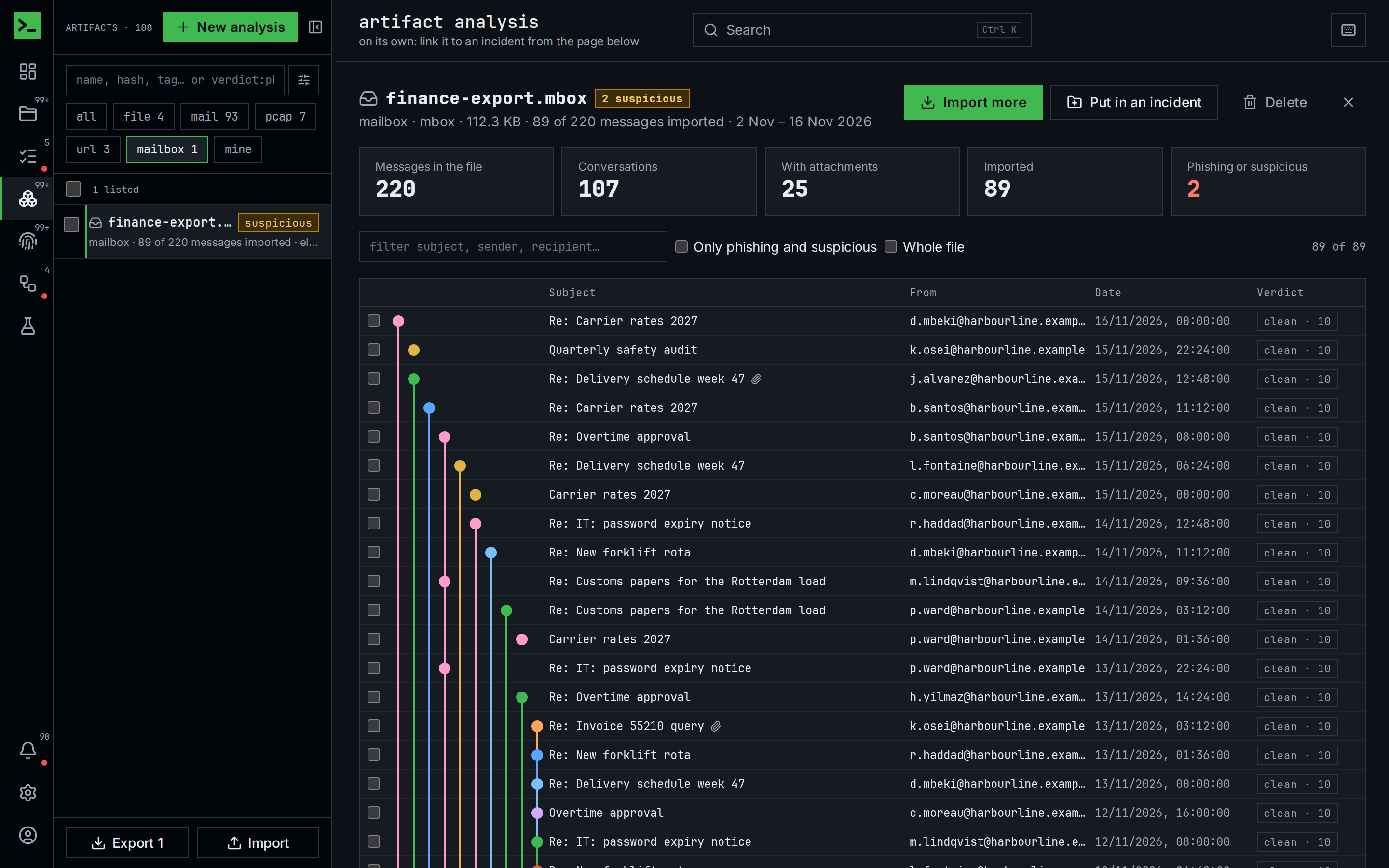
The graph of conversations
- A row per message, newest first, joined to the message it answers. A colour is a conversation; two lines leaving one message are two answers, or an answer and a forward.
- A hollow node is a message of the file not imported: select it and Import this message.
- Selecting a row shows the message below: From, To, Date, Answers, Answered by. Open the e-mail opens its analysis; Show only this conversation narrows the graph to one thread.
- Only phishing and suspicious and Whole file (every message, imported or not) change what is listed.
Put the messages in an incident
- Tick rows to send only some (or none, for all).
- Press Put in an incident (or Put N in an incident), choose the incident, press Put all N / Put the N selected.
The messages go to the incident's Evidence, under Mail Analysis. Only the phishing and suspicious ones add indicators: a mailbox is mostly ordinary mail.
Delete removes the file and its index; the e-mails imported from it stay.
Indicators and artifacts
An indicator is a value and what the sources say about it. An artifact is what Nik saw when it analysed something itself. Each leads to the other:
- The artifact's page has AS AN INDICATOR: its value, its reputation, Check reputation.
- The indicator's window has the analysis by Nik, or the offer to analyse an address. See Indicators of an incident.
- Right-click a URL anywhere: Analyse URL, or Open the analysis and Scan again when Nik has it.
Move artifacts to another Nik
- Tick artifacts (or export the list shown), press Export, choose what goes in, Download the archive.
- On the other Nik, an administrator presses Import in the Artifacts panel and Choose the archive (
nik-artifacts-….zip).
The other Nik adds what it does not have, with analyses and tags, and leaves the rest. Nothing is run. A mailbox travels only with its file.