Content packs
Install, update and remove what Nik is taught about a product: its connector, types, mappers, playbooks, scripts and dashboards, in one pack.
You need
The permission content.manage: the Admin role. Platform settings › Automation › Content packs.
Nothing of a vendor is inside Nik until its pack is installed. A vendor has a pack for each product (Atlassian: Jira Cloud, Confluence Cloud…). Nik built-in is the one pack that is part of Nik: its types, lists, scripts, playbooks, dashboards and the Mail connector. It follows Nik's releases and is never uninstalled.
The catalogue
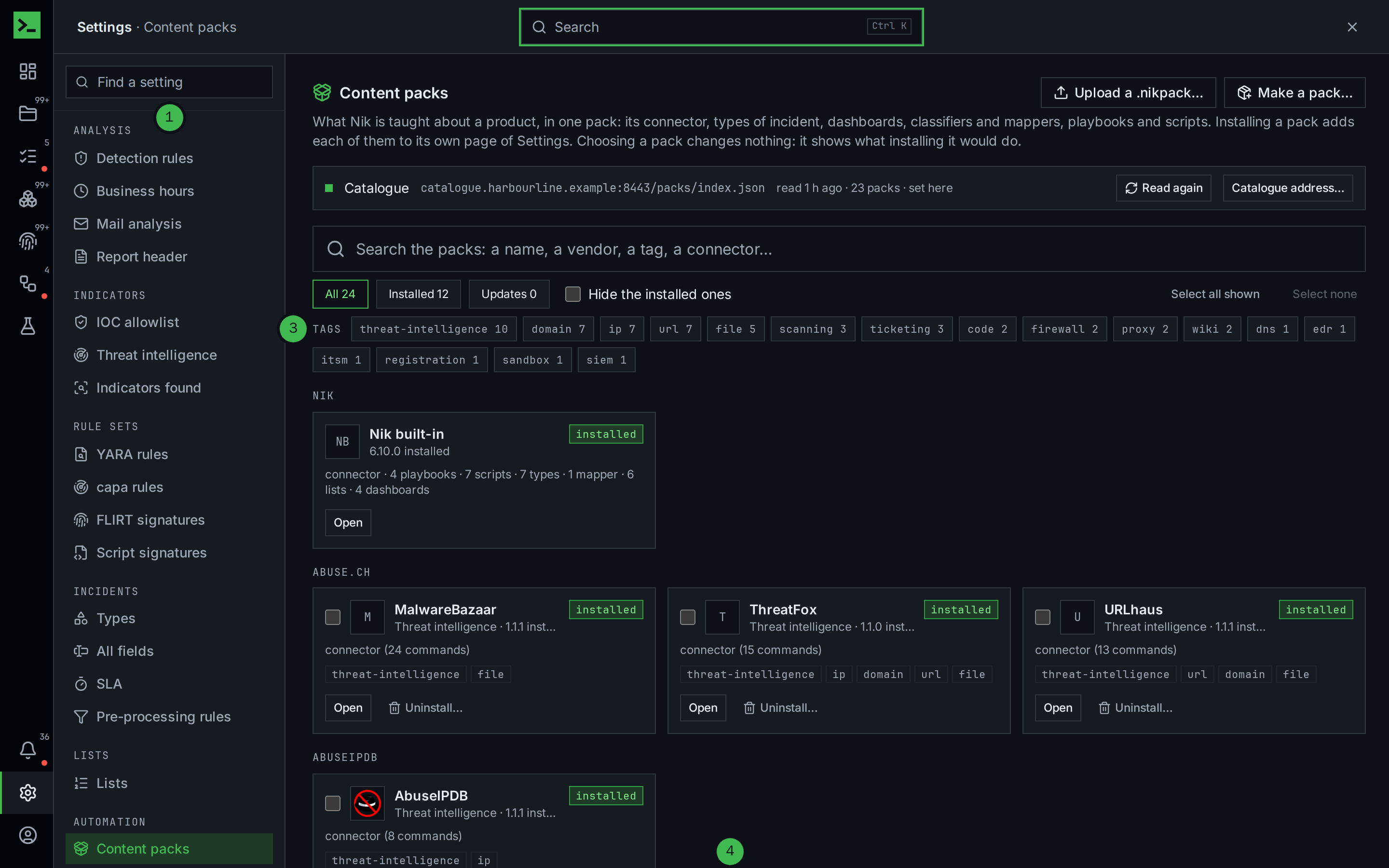
- 1 Search the packs: a name, a vendor, a category, a tag, a connector. Every word must be found in the card (
atlassian wiki). - All, Installed, Updates, and Hide the installed ones (remembered in this browser).
- 3 Tags: what the product is (
ticketing,edr,siem,firewall,threat-intelligence…) and what it works on (ip,domain,url,file). A pack must have every tag chosen. - 4 A card: what the pack holds (connector (17 commands) · 1 mapper · 1 playbook) and its state: installed, update, later Nik.
The cards are grouped by vendor.
Where the catalogue comes from
The packs are published from the folder packs/ of Nik's repository as the release packs: one .nikpack per pack, an index (index.json) and its signature. Nik reads the index the first time the page opens and when Read again is pressed.
- The index is read only when its Ed25519 signature is of the key Nik holds; a pack is taken only when its size and SHA-256 match the signed index.
- The backend must reach
github.com,objects.githubusercontent.comandrelease-assets.githubusercontent.com(throughHTTPS_PROXYwhen set). - Catalogue address… sets another address: a copy inside your network (leave the key empty: a copy keeps Nik's signature), or a catalogue of your own with the public half of your key.
Install a pack
- Find the pack and press Install… on its card.
-
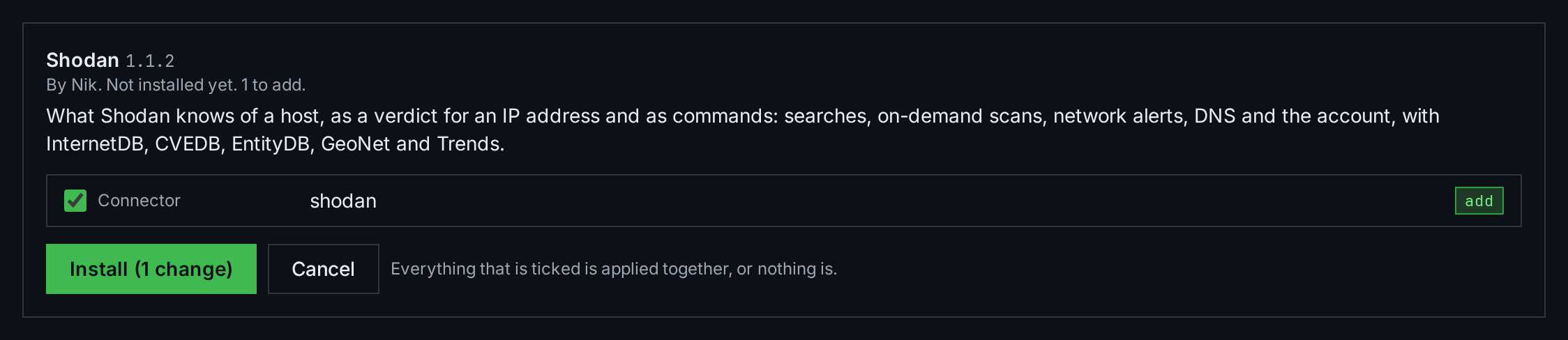
Nik inspects it and changes nothing yet. Each item is listed with what applying it would do:
It says Which means add Nothing with this name is here update It is here and differs: the difference is shown, line by line same It is here exactly as the pack has it conflict It cannot be applied, and why (a field of another type, an older connector, a mapper for an absent connector…) -
Leave out any item you do not want. A conflict must be left out or settled first.
- Press Install. The rest is applied in one transaction: all of it, or nothing.
A script is code
A script in a pack runs in the sandbox. Read its difference before installing it, as you would read a script someone sends you.
After installing:
- A playbook from a pack arrives off, reaching only listed hosts and sending no class of data.
- A new instance of its connector starts with the classifier the pack gives.
- A pack never carries an instance, a credential, an allowed host or an opened class of data. Make the instance yourself: Connectors and mirroring.
A pack that requires another says so and is installed after it. One written for a later Nik is not offered. Open shows what an installed pack gave, and marks what was changed here since or is no longer here.
What a pack holds
| Folder | Item |
|---|---|
connectors/ |
A connector, with its logo and README |
scripts/ |
Scripts |
playbooks/ |
The graph of a playbook's current version, and its limits |
fields/ |
Custom fields |
incident_types/ |
Types: fields, layout, SLA, close reasons, playbook |
mappers/ |
Incoming and outgoing rules, and the classifier a new instance starts with |
lists/ |
Lists, with their items only when the pack was made to carry them |
dashboards/ |
Dashboards |
preprocess_rules/ |
Pre-processing rules |
The file format is in Connector and pack format.
Update a pack
- Choose Updates, or look for update on a card.
- Press See what changes…: the newer version is inspected item by item, with the differences.
-
Leave out what you want to keep as it is, and install.
-
A playbook or a script gets a new version; a version in use is never rewritten.
- A playbook whose graph lacks something here (an instance, a command) is kept as a draft, its version in use untouched.
- What you changed since the pack gave it (a script edited, a mapper rewritten) shows as update: leave it out to keep yours.
Updating the Jira and ServiceNow packs
Up to their packs 1.1.0, the incoming mappers of ServiceNow, Jira Cloud and Jira Data Center set the mirroring direction themselves (in): every ticket fetched was mirrored In, whatever the instance said. From 1.1.0 the instance decides, like every other connector.
When the update replaces such a mapper:
- every instance of that connector whose Mirroring is None is set to In in the same step, so nothing changes in practice. The update reports it, and the audit log records
mirror.kept; - an instance someone gave a direction is left as it is;
- a mapper you changed and leave out of the update still names the direction, is still obeyed first, and no instance is touched.
A new installation of these packs starts at None. See Mirroring.
Several at once
- Tick the box of each card, or Select all shown.
- The bar offers Install (n)…, Update (n)…, Uninstall (n)….
- One confirmation shows the whole plan, pack by pack, in order (a pack after those it requires). A pack that cannot be done is marked left out, with why.
- The packs are done one after the other, each in its own transaction. The dialog ends with what happened to each.
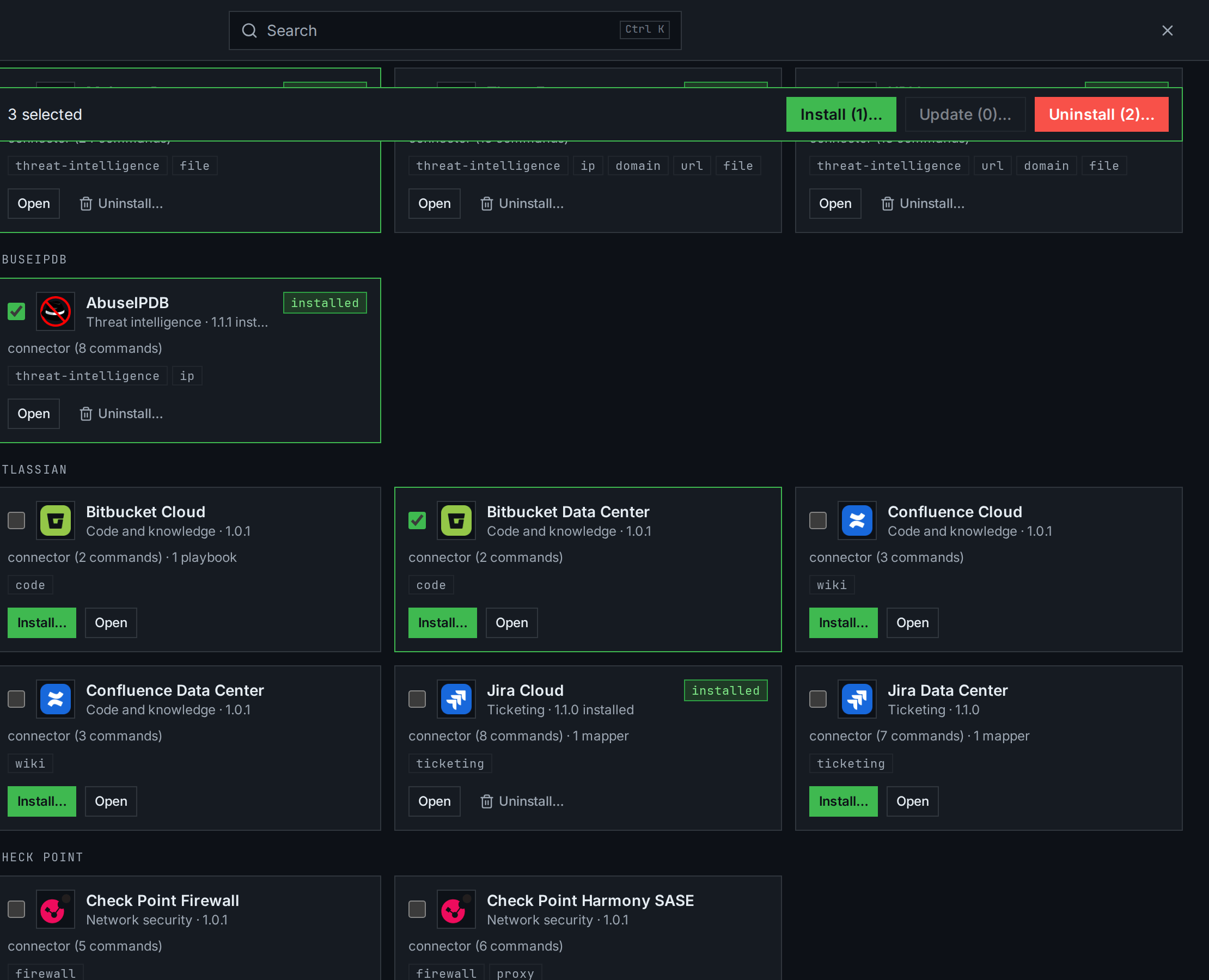
A pack with a conflict cannot be done in bulk: install it alone, where an item can be left out. Nik built-in and a pack for a later Nik cannot be ticked.
Uninstall a pack
- Press Uninstall… on its card. What would happen is shown first, item by item.
-
If something of the pack is in use, the dialog lists what holds it, and offers no Uninstall:
What holds a pack What to do first An instance of its connector Delete the instance (its stored credentials stay) A playbook of the pack that is on, or has a run in progress Turn it off; wait for the run, or stop it A playbook or pre-processing rule of yours that uses its connector, script, playbook or list Take it out, or delete them Incidents of its type; a type of yours with its playbook Give the incidents another type; give the type another playbook Its field, listed by a type or holding a value Take it off the type; empty it Its list, read by a setting Point the setting to another list Another installed pack that requires it Uninstall that pack first -
What you changed since the pack gave it stays: it is yours now.
Only take it off the list removes nothing: the pack leaves the list and everything it gave stays.
Make a pack, and packs without the catalogue
- Make a pack… asks for an id, a name, a version, then the items. What an item needs comes with it (the scripts and connectors of a playbook, the fields of a type…). A list goes without its items unless you ask.
- Download as a file on an installed pack gives its
.nikpack. - Upload a .nikpack… installs a file the same way as the catalogue.
A Nik that cannot reach the catalogue:
Download the .nikpack from the release packs on another machine, then Upload a .nikpack….
Set NIK_PACKS_DIR to a folder the server reads. The packs in it (a folder with a pack.yml, or a .nikpack) are installed at start when they are missing or older. Nothing there is checked against a signature.
In the backend container, python -m app.pack_build <folder of packs> <folder to write> writes the .nikpack files and the index, signed with the Ed25519 key in PACKS_SIGNING_KEY. Serve the folder over HTTPS and set its address and public key in Catalogue address….
NIK_PACKS_CATALOGUE= (empty) starts Nik with no catalogue: the page lists what is installed, and packs come as files.